Creating a Wizard › Modifying the First Part of the Wizard › Hiding the Apply Button
Hiding the Apply Button
The Apply button is no longer required on the Add Project function’s panel. In this section you hide it. At the same time, some other improvements are made to this panel.
You should have the Add Project action diagram open. Here is a quick way to switch to the panel associated with an action diagram:
- From the View menu, choose Edit Panel (F11).

The Add Project panel design appears as a white box without the usual title bar and border. This is because this panel is a Child Panel that can only be run within a site on another panel.
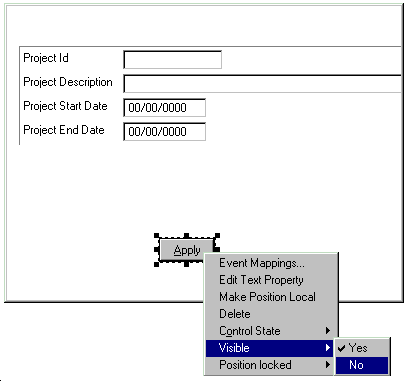
- On the Design window select the Apply button. Click the right-mouse button and set the Visible property to No using the pop-up menu. This is an alternative to setting the property on the Property Sheet.
- Change the Project Description edit control into a multi-line edit control and add a spin control to the date fields. You made these same changes to the Project.Edit panel previously. For more information, see Defining a Multi-Line Edit Control and Adding Spin Controls in the chapter "Your First CA Plex Application in 20 Minutes."
- That completes the changes to the Add Project function and its panel. Close the Action Diagrammer and the Panel Designer and save your changes.

