

|
|
|
Now that you have modified the panel, you must regenerate and rebuild the function that displays it before you can see the changes.
To regenerate and rebuild Project.Edit:

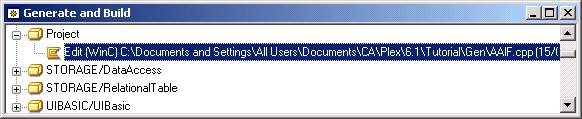
To rebuild a panel, you regenerate and rebuild the function that scopes it. Because you only modified the Project.Edit.Panel object, you only need to regenerate and rebuild Project.Edit. If you had made changes that affected the scoped table or other objects, you would need to regenerate and rebuild those other objects as well.


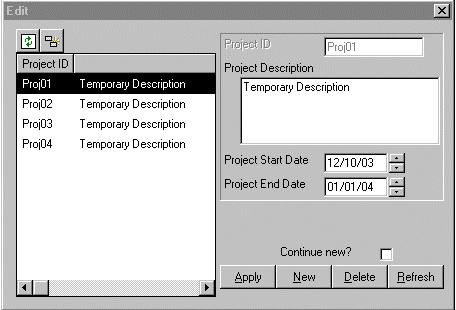
The modified dialog appears, showing the data you entered:
Create a database application for the McCready account. Contact is Jim Hauser, 415-555-3146.
Notice that the description has changed in both the grid and detail regions.
Create an email client for internal support staff.
and change the Proj03 description to:
Convert the ODBC version of the McCready application to a System i version.
| Copyright © 2012 CA. All rights reserved. | Tell Technical Publications how we can improve this information |