

|
|
|
You have now defined fields for the Project entity, and specified the properties of those fields. You have also defined functionality for the Project entity, providing a basic user interface and the ability to write to and read from a database. You are now ready to generate and build the Project entity. This is the process in which CA Plex turns your model into source code (generating), and then turns your source code into compiled objects (building).
After you have generated and built the objects in your model, you will be able to run the program to see what you have created.
To generate and build the Project entity:

The Generate and Build window appears. The Message Log pops up when you open the window. From the Options menu, choose Quiet Mode, and then minimize the window. This keeps the Message Log from popping up every time it has a new message.

The Generate and Build window now shows the Project and Employee entities (Employee was already added to your model before you started):
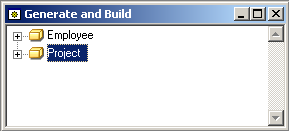

CA Plex expands Project and highlights all of the generatable objects under it. Not all of the scoped objects are selected.
CA Plex generates those objects, and then summarizes the generation process.
Note: Three warnings appear in the Message Log during the generation and build processes. This is expected and not a problem. You can expect one warning message (BLD9083) to occur during the generation stage. For more information, see Checking for Errors.
CA Plex starts Microsoft Visual Studio to compile the generated C++ source files. Depending on your settings, Visual Studio may start minimized.
At the same time, the database table is sent to the ODBC data source being used for this tutorial. To make set up easier, CA Plex created this data source automatically during installation together with the underlying Microsoft Jet database.
Note: You can expect to see two of the three warning messages during the build process. For more information, see Checking for Errors.
You can tell that your C++ build is done when the label on the Visual Studio taskbar button changes from the name of the model to Microsoft Visual C++. Or, if you have opened the Visual Studio window so that you could watch the build, you can tell that it is finished when the cursor returns to the top of the build summary.
| Copyright © 2012 CA. All rights reserved. | Tell Technical Publications how we can improve this information |