

|
|
|
The CA Network Flow Analysis Administration page lets you review, administer, and customize the network data view. When you access this page, the System Status displays and uses the following status icons:
Click a red exclamation mark to view the associated error report. The error report includes the IP address, the type of component, and more information about the error. No error messages are displayed for a green check mark.
Note: To perform administration tasks, log in with Administrator rights.
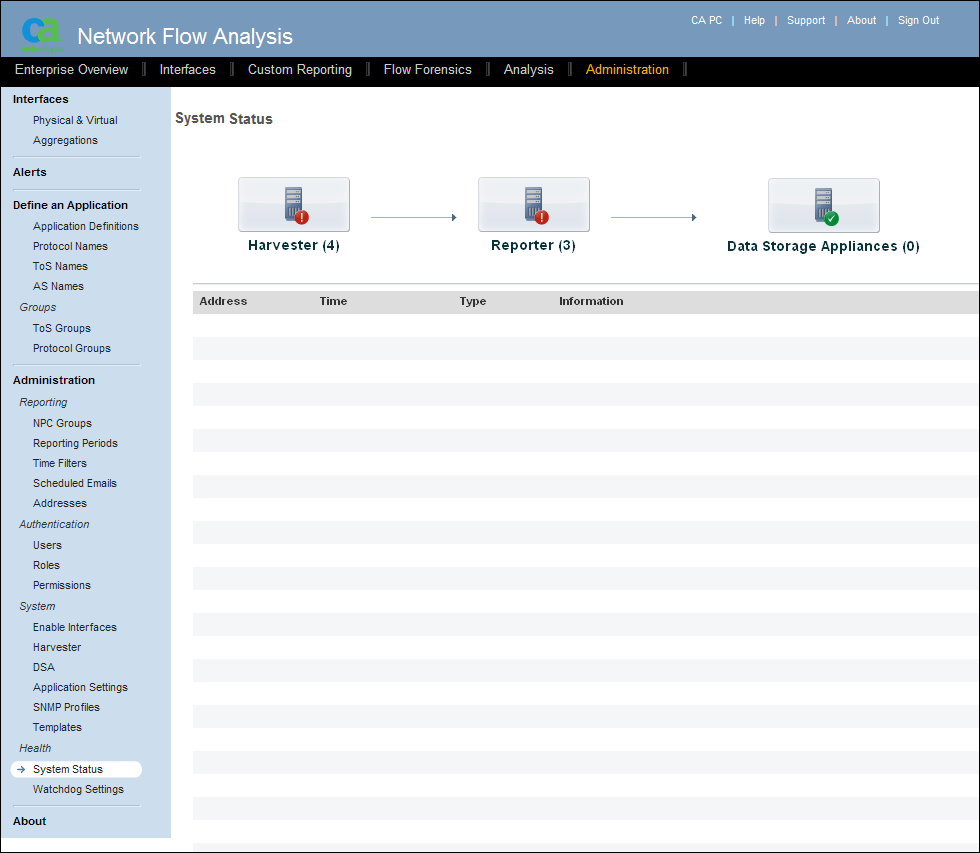
A menu of administrative options is on the left side of the page. The following list describes the Administration menu options: the page that opens for each option and its function.
Note: In CA Network Flow Analysis version 9.1.1, the Data Storage Appliances component always shows a green system status icon. Data Storage Appliances are not active in this release.
View the status of the interfaces on the Active Interfaces page, which opens in List/Edit mode. You can also edit, delete, or merge interfaces or create a custom virtual interface (CVI).
Aggregate interfaces on the Aggregation Interfaces page so you can view the interfaces as a unified group.
Add and view trap definitions on the Trap Configuration page.
Define an Application Menu
Define application mapping rules, port priorities, or Reserved Seating on the Application Definitions page.
Specify the domain and add or remove protocol names on the Protocol Configuration page.
Specify the domain, select a ToS value, or edit ToS values on the ToS Configuration page.
Search, edit, or reset AS names on the AS Names page.
Add, edit, or delete ToS groups on the ToS Group Configuration page.
Add, edit, or delete protocol groups on the Protocol Group Configuration page.
Manage groups on the Manage Groups page in CA Performance Center. This option is enabled only if CA Network Flow Analysis is registered as a data source for CA Performance Center.
View, add, edit, and delete reporting periods on the Reporting Periods Configuration page.
View, add, edit, and delete time filters on the Time Filter Configuration page.
Specify the destination address for any reports that are scheduled for email delivery, by using the Scheduled Emails page. Configure the frequency and timing for emailing scheduled reports.
Specify a mask and options for resolving DNS names for each domain, by using the Address-Hostname Configuration page. For addresses in each domain, list, edit, delete, and expire addresses.
Manage users on the Manage Users page in CA Performance Center. This option is enabled only if CA Network Flow Analysis is registered as a data source for CA Performance Center.
Manage roles on the Manage Roles page in CA Performance Center. This option is enabled only if CA Network Flow Analysis is registered as a data source for CA Performance Center.
View the status of routers on the Active Interfaces page in Enable/Disable mode. View the list and status of the interfaces for each router. Enable, disable, or delete interfaces.
View, add, edit, and delete the Harvesters that send data to the NFA console, by using the Harvester page.
Edit a wide range of application settings on the Application Settings page.
Manage SNMP profiles on the Manage SNMP Profiles page in CA Performance Center. This option is enabled only if CA Network Flow Analysis is registered as a data source for CA Performance Center.
View, add, edit, and delete the templates that determine the way interfaces are displayed, by using the Interface Templates page.
View the overall status of the Harvesters and the NFA console on the System Status page. Display a list of the problem reports for each component.
View and edit Watchdog configuration settings on the Watchdog Settings page.
View the product version number, installation date, license information, and documentation on the Version Information page.
| Copyright © 2012 CA. All rights reserved. | Tell Technical Publications how we can improve this information |