The CA NetMaster FTM region uses file transfer rules to raise alerts and perform actions in response to events associated with file transfers. If a transfer matches a rule, the region displays an alert on the alert monitor.
Important! To use file transfer rules for FTS transfers, define the FTS managers for the appropriate CA SOLVE:FTS regions. The managers enable the CA NetMaster FTM region to detect FTS file transfer events. To use file transfer rules for CONNECT:Direct transfers on distributed systems such as UNIX, define the CONNECT:Direct managers. Define CONNECT:Direct for OS/390 resources to enable access to the CONNECT:Direct messages.
To create a set of file transfer rules:
To define a file transfer rule set
The File Transfer Ruleset List appears.
The File Transfer Ruleset panel appears.
Specifies the name of the file transfer ruleset.
Limits: 8 characters
Briefly describes the file transfer ruleset.
Press F3 (File).
The definition is created in the knowledge base.
During operation, only one rule set is active in a CA NetMaster FTM region. Add all the file transfer rules that are to be used by a region in the same rule set. You can use different rule sets for different regions.
To add a file transfer rule to a rule set
The File Transfer Ruleset List appears.
The File Transfer Rules panel appears.
Note: If active rules have the same criteria, the rule with the name that occurs first alphabetically, is applied.
The File Transfer Rule Filter panel appears.
Specifies the name of the rule.
Specifies whether the rule is ACTIVE or INACTIVE. You can use this field to switch the rule on or off.
Specifies a brief description for the rule.
Identifies the events that the rule monitors. This value can be case sensitive.
Note: You can use a mask to allow matching of more than one process, definition, or file. The wildcard characters are percent (%), representing zero or more characters, and underline (_), representing a single character.
Specifies the value that the Source/Target/TransferID field should monitor:
Specifies the file transfer status that the rule should monitor:
The severity of the alert that is raised when the rule is triggered.
Specifies whether to close a generated alert automatically. If you specify YES:
You can specify an alert time out whereby an alert is closed only after the specified period of time.
Press F10 (Actions).
The Alert Automated Actions panel appears.
The Available Actions panel appears.
The actions you can specify include raising a problem record, notifying selected users, issuing a command, and running a process (see the online help).
The Alert Definition for File Transfer Rule panel appears.
The definition is saved.
Note: Before the rules can be triggered by file transfer events, you must load the rule set that contains them. If the rule set is loaded when you add a rule, then the rule becomes active immediately.
To load a rule set
The File Transfer Ruleset List appears.
The rule set is loaded for the session, replacing the rule set previously loaded.
Note: The default rule set defined in the AUTOIDS parameter group is not changed by this load action. If you want to change the default rule set you need to change the parameter group.
The values that you enter for FileName/TransferID and for the node name and user ID secondary criteria are case sensitive.
If you specify a value for transfers associated with a UNIX, Generic API, or Windows system, you must specify it in mixed case and special characters.
Note: The percent sign (%) and the underline (_) are not recognized as characters; file transfer rules and schedules recognize them as wildcard characters for file names and IDs.
If you specify a value for transfers associated with a z/OS system, you must specify it in upper case.
Note: This does not apply to HFS files.
If a file transfer event matches more than one rule, only the most restrictive rule is triggered.
For example, an active rule set contains two rules, A and B, that have the same criteria except for file name criterion, which are, respectively, ALSO0.HYPL.CARD(%) and ALSO0.HYPL.CARD(USER01). The results of the rules being matched are as follows:
|
If a file transfer event is received for... |
Then rule... |
|---|---|
|
ALSO0.HYPL.CARD(USER01) |
B is triggered. |
|
ALSO0.HYPL.CARD(x), where x is not USER01 |
A is triggered. |
A CA NetMaster FTM region identifies a CA XCOM Data Transport for z/OS transfer by xcom-transfer-id(request-number). If a transfer does not have an ID, xcom-transfer-id takes on the following values. Similarly, if the user ID of a transfer is not known, the user ID takes on the following values.
|
Systems |
xcom-transfer-id |
User ID |
|---|---|---|
|
Data General |
DG-XFR |
DG-USER |
|
DEC |
DEC-XFR |
DEC-USER |
|
DOS |
DOS-XFR |
DOS-USER |
|
MVS |
MVS-XFR |
MVS-USER |
|
PC |
PC-XFR |
PC-USER |
|
SYS/36 |
SYS36-XFR |
SYS36-USER |
|
SYS/38 |
SYS38-XFR |
SYS38-USER |
|
SYS/88/STRAT |
SYS88-XFR |
SYS88-USER |
|
Tandem |
TANDEM-XFR |
TANDEM-USER |
|
UNIX or Windows |
UNIX-XFR |
UNIX-USER |
|
Unknown |
UNKNOWN |
UNKNOWN-USER |
|
VM |
VM-XFR |
VM-USER |
|
WANG |
WANG-XFR |
WANG-USER |
When you identify CONNECT:Direct file transfers, consider the information in the following sections.
Notes:
With CONNECT:Direct file transfers, a CA NetMaster FTM region cannot monitor the transfer of specific data set members. Do not identify members when you specify the file name or transfer ID criterion.
The region reacts to each transferred member. For example, the region sees the transfer of the data sets, ALSO0.HYPL.CARD(AL1) and ALSO0.HYPL.CARD(AL2), as two separate transfers, although it cannot identify the actual members transferred.
A CA NetMaster FTM region identifies a CONNECT:Direct process by process-name(process-number).
Identify CONNECT:Direct processes in the form of a mask. For example, to identify process PR01, specify PR01(%); to identify processes with names that start with PR01, specify PR01%.
A CA NetMaster FTM region identifies a CONNECT:Mailbox transfer by mailbox-id(batch-number).
Identify CONNECT:Mailbox transfers in the form of a mask. For example, to identify transfer MB01, specify MB01(%); to identify transfers with IDs that start with MB01, specify MB01%.
The region does not receive an event at the start of a host initiated Auto Connect batch transfer.
When you identify FTP file transfers, consider the information in the following sections.
File transfer rules are triggered by file transfer events. There are some restrictions on the information available to CA NetMaster FTM from FTP events. You need to consider these restrictions when setting up a file transfer rule, as a rule cannot be triggered if the required information is not available.
Information available from FTP events has the following restrictions:
For FTP file transfers using CA TCPaccess FTP Server for z/OS, the transfer ID is in the format server-name(transfer-number).
Identify the transfers in the form of a mask. For example, to identify all transfers from the server PR01, specify PR01(%); to identify transfers to and from servers with names that start with PR01, specify PR01%.
For FTP file transfers not using CA TCPaccess FTP Server for z/OS, no transfer ID is available. Only local data set names are available for identifying FTP transfers. However, you can assign a static name to all FTP transfers not using CA TCPaccess FTP Server for z/OS by using the FTPCNTL parameter group.
When you build your FTP file management environment and if you are using CA TCPaccess CS for z/OS, consider the following:
Note: This does not apply to IBM Communications Server when you use the FTP post-processing exit FTPOSTPR.
The CA NetMaster FTM region determines the success or failure of an FTP file transfer by checking the value of the last FTP reply code, and 226 is one of many codes that the region interprets as successful.
When an FTP file transfer is aborted by the client, the last reply code is 226, indicating that the transfer is successfully aborted, and the region displays the transfer status as successful.
CA TCPaccess FTP Server for z/OS uses a sub-reply code to differentiate between successful and aborted file transfers.
When you identify FTS file transfers, consider the information in the following sections.
If a CA NetMaster FTM region is monitoring multiple CA SOLVE:FTS regions, it is possible that transmission definitions with duplicate names are used. If you want to monitor such a definition, specify additional criteria to identify it uniquely.
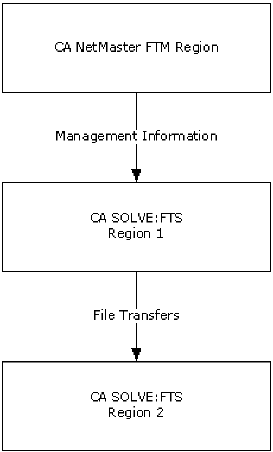
A CA NetMaster FTM region monitors the file transfers between CA SOLVE:FTS regions, which may or may not be managed by it. The following diagram shows an example where FTS Region 1 is managed and FTS Region 2 is not managed:
If a CA SOLVE:FTS transmission definition specifies a DD name that points to a data set in Region 2 and CA NetMaster FTM is not authorized in Region 2, CA NetMaster FTM will be unable to resolve the data set name and cannot monitor the data set.
To resolve this problem, perform one of the following:
Note: For more information, see the Installation Guide.
A CA SOLVE:FTS region can perform a file transfer by using staging data sets. Data from different sources are copied into the source data set for transfer. When the transfer is complete, data are copied out into the different target files. The following diagram shows the staging mode operation:
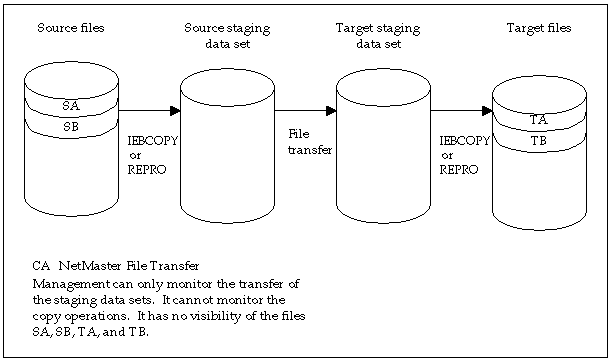
When staging mode operation is used, CA NetMaster FTM can only monitor the transfer of the staging data sets. It has no visibility of the files that were copied into that data set. For this type of file transfer, ensure that your file name criterion specifies the staging data sets and not the copied files.