

|
|
|
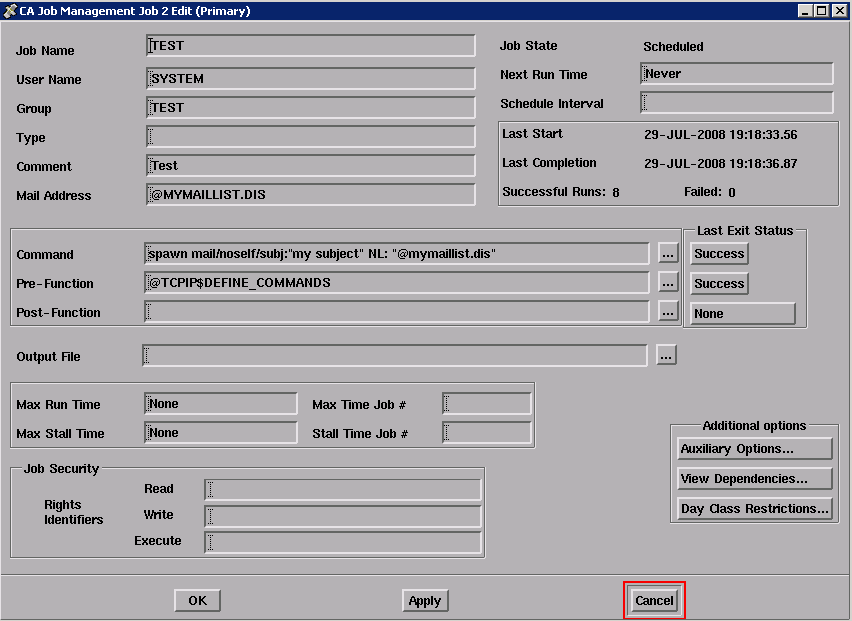
To view the attributes of a job, select it using MB1 and choose Edit... from the Jobs menu, or choose Edit... from the job’s pop-up menu. In the Graphical Jobs Display window, you can also Double-click on the job using MB1. The manager displays the job in the Job Edit dialog box. You can also edit the job from this dialog box (see Editing a Job).
More information about a job is available by clicking on the buttons at the bottom of the Job Edit dialog box: Auxiliary Options..., View Deps..., and Day Class Restrictions...
Viewing the attributes of a job is similar to using the following command in the DCL interface:
$ SCHEDULE SHOW JOB job_name/FULL
Note: To avoid changing a job’s attributes, be sure to click on the Cancel button in the Job Edit dialog box and its associated additional dialog boxes; do not click on OK or Apply.
The following figure shows the primary Job Edit dialog box:
| Copyright © 2012 CA. All rights reserved. | Tell Technical Publications how we can improve this information |