Start Program Execution

Now you are ready to begin testing the demo program.

To start program execution

  1. On the InterTest Debug view, select the program you want to monitor in the monitored folder, and click the green bug button Green bug icon for beginning debugging on the InterTest Debug view toolbar.

    The InterTest Debug Settings dialog opens.

  2. Click Submit to submit the job.

    The InterTest Debug view now displays the debugging status as Debugging:
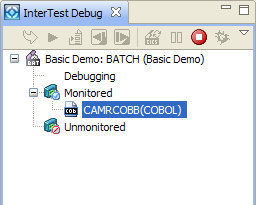
    The InterTest Debug view displays the status as debugging.

    After a short time you will notice that the InterTest Debug view changes. The debug button is now disabled, and the Step Once, Resume Debugging, and the Cancel Debug Session buttons are now enabled.
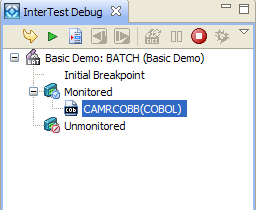
    The InterTest Debug view displays the program being monitored.

    In the Program Listing area there is a blue arrow on the left side of statement 427, the initial Breakpoint.
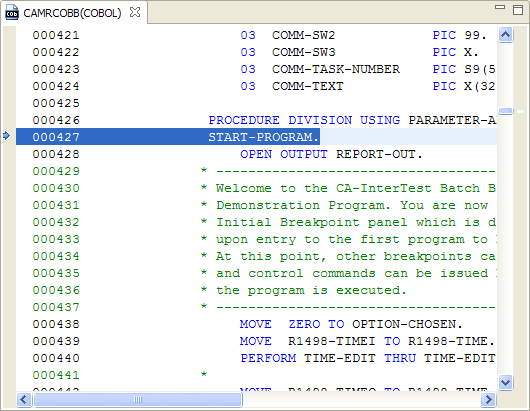
    The Program Listing view displays where the program abends.

  3. Click the Resume debugging button Use this icon to resume debugging your program. to continue debugging the program.


Copyright © 2009 CA. All rights reserved. Email CA about this topic