Upgrade Guide › WebLogic Version › Upgrade on a Single WebLogic Node › How to Migrate a Single Node Installation to WebLogic 11 › Install the new Identity Manager Server on the WebLogic Node
Install the new Identity Manager Server on the WebLogic Node
To reinstall the Identity Manager Server
- Upgrade WebLogic to Oracle WebLogic 11.
- Perform a new install of the Identity Manager Server.
Be sure to provide the existing CA Identity Manager database credentials during the install and that all values from the previous release of CA Identity Manager are replaced with r12.5 SP7 values.
- Start the Identity Manager installation program.
- Windows: From your installation media, run the following program:
ca-im-release-win32.exe
- UNIX: From your installation media, run the installation program. For example, for Solaris:
ca-im-release-sol.bin
release represents the current release of CA Identity Manager.
- Select the option to install the Identity Manager Server.
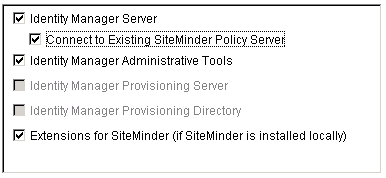
- Supply the details for the Weblogic 11 that you collected in your worksheet.
- For database credentials, provide the same values that existed at the previous installation.
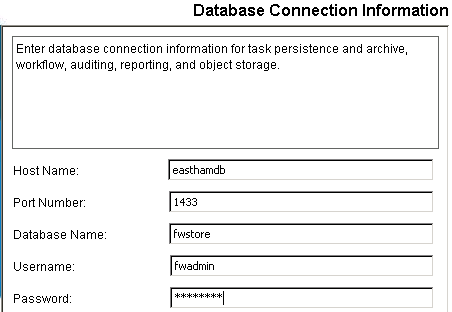
Important! If you are upgrading from CA Identity Manager r12 and you have different database stores for task persistence, workflow, audit, and reports, update the data sources to point to the separate stores.
- Create a user on the Login Information section using a password you can recall.
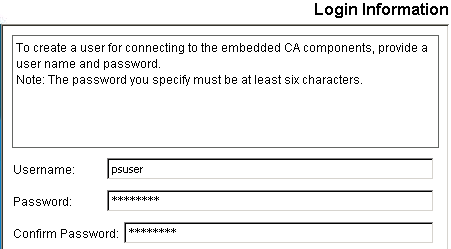
- Review the summary of your upgrade choices and click Install.
The installer will install the components you selected and gradually update the progress bar.

- When the installation completes, inspect the Install Complete message. If you see errors on the screen, note the path for the logs, which explain the errors.
If you are upgrading from CA Identity Manager r12, continue by upgrading the workflow database.

