Installation Guides › JBoss Version › Standalone Installation › How to Perform a Standalone Installation › Install All Components on One System
Install All Components on One System
You may decide to install all components of CA Identity Manager on a single system.
Important! Installing all CA Identity Manager components on one system is recommended only for demonstration environments.
To install the main CA Identity Manager components on one system
- Make sure that you have the required information for installer screens, such as host names and passwords.
- Ensure that CA Directory is already installed on the system.
- Stop the application server.
- Log in as a Local Administrator (for Windows) or root (for Solaris).
- Run the CA Identity Manager installer from your installation media's top level folder:
- Windows:
ca-im-r12.5sp3-win32.exe
- UNIX:
ca-im-r12.5sp3-sol.bin
The CA Identity Manager installer opens.
- Check all of the following components to install on a single system:
- For the Identity Manager server, be sure to supply the port number that corresponds to the configuration of JBoss. Ports 1099 and 8080 are used by default. However, if these ports are used by other applications on the system, conflicts occur. For example, Oracle by default starts XDB service on port 8080. Either, JBoss or the other application should be configured to use a different port.
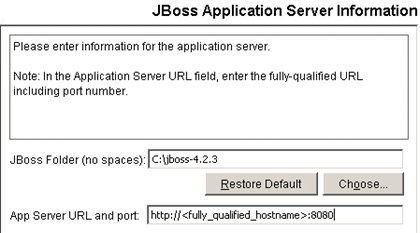
- Complete the instructions in the CA Identity Manager installer dialog boxes.
When installing the Provisioning Directory, you are asked to choose a deployment size. For an installation of all software on one system, choose Compact or Basic:
- Compact—up to 10,000 accounts
- Basic—up to 400,000 accounts
- Intermediate (64 bit only)—up to 600,000 accounts
- Large (64 bit only)—more than 600,000 accounts
Note: Intermediate and Large installations require 64 bit Directory installs (either Solaris or Windows 64 bit).
If any issues occur during installation, check the installation logs.

