

|
|
|
Inside a CA IDMS Visual DBA, the Database Object Manager provides a convenient and organized way to view and manipulate the database information that is currently stored on a particular server.
The Database Object Manager (DOM) window appears after you connect to a CA IDMS database:
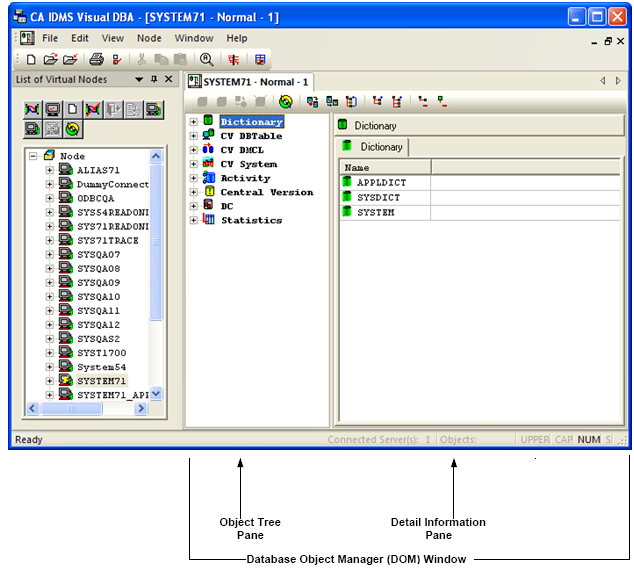
When the DOM window opens, it displays all the available object types at root level in the Object Tree pane according the profile of the current user. In the above example, the Dictionary object type is the first root object in the Object Tree pane. Because it is the first object in the tree, it is selected and highlighted and the level-one instances of the Dictionary object (in this example APPLDICT, SYSDICT, and SYSTEM) display in the Detail Information Pane. The caption in the Detail Information Pane reflects the identification of the highlighted object type.
In the Object Tree pane, you can change the object type that you want to view. In the Detail Information Pane, you can drill down to display the information you want about an object. When you click an object, the Detail Information Pane displays labeled tabs that provide attribute information. As discussed later in this chapter, the tabs that are displayed are dependent upon the type of object selected.
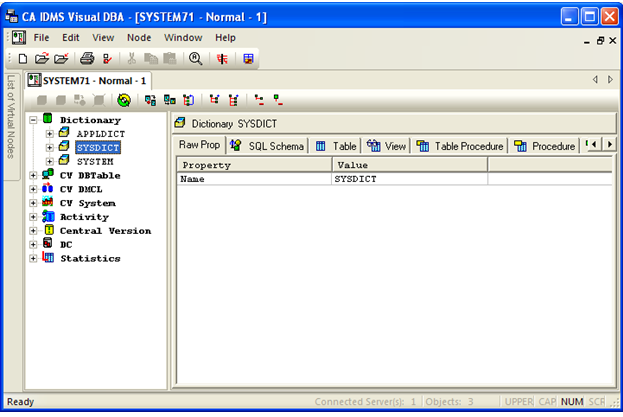
Using the Database Object Manager, you can create, alter, drop, and display CA IDMS objects, and assign privileges to them. Additionally, you can open and simultaneously work with multiple databases and/or servers in multiple windows.
Note: If you are connected to a CA IDMS server that is older than the most recent release of the product, you may not be able to manipulate some objects in the DOM. When expanded, these objects display the message <No OBJECT>, where OBJECT is the name of the object you are trying to view. Similarly, these objects have null values when viewed in the Raw Property table or the Property dialog.
| Copyright © 2011 CA. All rights reserved. | Tell Technical Publications how we can improve this information |