You can use the new Image Editor to work with image objects that you want to use in your model. In earlier versions of CA ERwin Data Modeler this functionality was limited to an Icon import option on the Icon tab in the Entity editor, and import icon options in the Attribute Editor and Domain Editor.
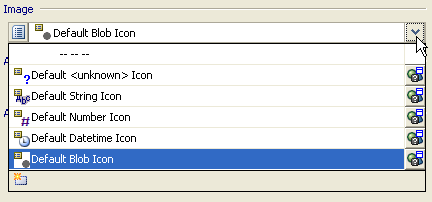
In r8, you add an image object, and then associate it with an entity, attribute, or domain using the Image option:
If you want to associate a new image with an attribute, domain, or entity, click the New button on the Image option drop-down to open the Image Editor.

Click the Image Path drop-down to specify the path to an image on your machine.
Property editors have been enhanced to provide consistent behavior and easier editing of objects. These editors are designed with common features that let you quickly create and maintain modeling objects.
These editors contain the following options:
 Previous
Positions the editor on the previous object in the Navigation Grid.
 Next
NextPositions the editor on the next object in the Navigation Grid.
 Sort
SortSorts the objects by alphabetic or reverse alphabetic order in most instances; some objects support other ways to sort. If other ways of sorting objects exists it will be available using a drop-down selection method when you click the Sort button.
 New
NewCreates an object that becomes the current object in the editor.
 Delete
Deletes the selected object.
 DB Sync
Opens the DB Sync wizard, where you can perform a database-level compare of objects in the current model with matching objects in another model or database.
Note: This button is not available if the DB Sync function is not relevant to the current type of object in the editor, and is only available in the physical model.
 Help
Help Opens online help for the editor.

Lets you filter a very large list of objects in the Navigation Grid to quickly locate the object for which you need to view or define properties.
Additional options are available on the Navigation Toolbar for certain objects that utilize additional features, such as resetting order or property inheritance for attributes and columns.
Provides a tabular representation of the current object and other objects of the same type. Properties relevant to the object display in separate cells, each with a text entry area, check box, or drop-down control for selecting available values. The amount of space allocated to the Navigation Grid can be adjusted by moving the splitter bar up and down. Columns within the Navigation Grid can be readjusted to be narrower or wider. Once you change a field, when you go to another field, the value is saved. If you click the Cancel button, it only cancels the change of the current field.
Contains the main options for most objects and is where you define most of the necessary properties for that object. In certain editors, some of the options in this tab only become available after you have first selected a check box to enable that option.
Provides additional functionality relevant to the editor. For example, all editors contain a Comment tab that lets you enter comments specific to that object, a UDP tab that lets you define user-defined properties, and a Notes tab that lets you view history for the object or enter user notes. Some objects utilize a Where Used tab to let you view where the object is used in the model, a Style tab that lets you define a theme for using font and colors, and an Icon tab to let you define an icon image to display on the diagram.
Provides icons you can click to undo the last action or redo the previous action within the editor. Click the Details button to open the Advisory Message Dialog that displays details about the action.
| Copyright © 2011 CA. All rights reserved. | Email CA Technologies about this topic |