

|
|
|
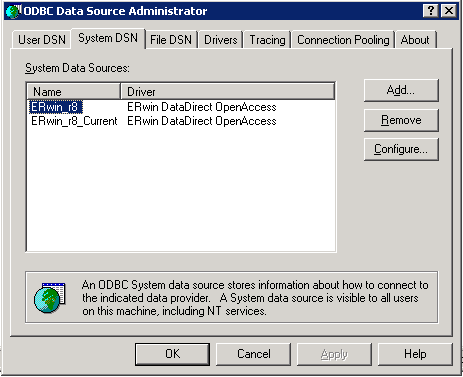
The installation of CA ERwin DM r8 creates two ODBC data sources on your machine. One is named ERwin_r8 and the other ERwin_r8_Current. If you want to confirm that these are present, you can invoke the Windows ODBC Data Source Administrator and go to the System DSN tab page, as shown in the following illustration:
Use the connection mechanism of your query tool to connect to one of these data sources. No user ID or password is required by CA ERwin DM.
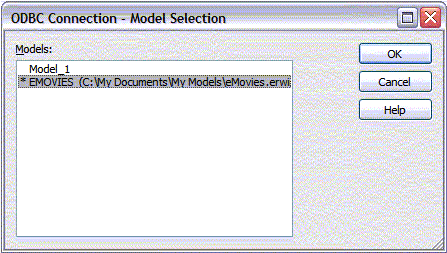
A connection is made to a specific model loaded into the product. The ERwin_r8_Current data source connects to the current model in CA ERwin DM at the time of connection. The ERwin_r8 data source presents a dialog that allows you to select the target model for the connection. The current model is denoted with an asterisk, as shown in the following illustration of the Model Selection dialog:
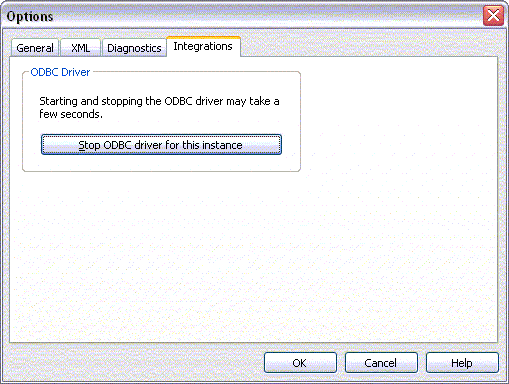
If you have multiple copies of CA ERwin DM running, the ODBC driver can serve data from only one instance. By default, this is the first one started. If you want to change which instance of CA ERwin DM is handling the ODBC connection, first stop the driver on the one that is running using the Integrations page on the Options dialog, then start the driver on the second copy of CA ERwin DM from the same place:
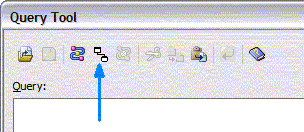
For the ERwin Query Tool, use the Connect to ERwin ODBC toolbar item as quick way to make this connection:
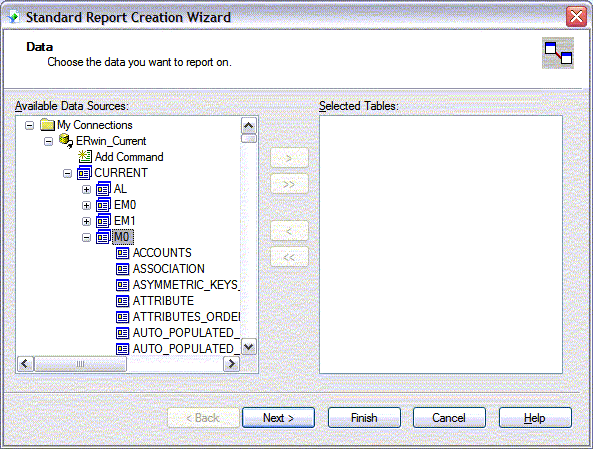
To connect to CA ERwin DM using Crystal Reports 2008, follow this process:
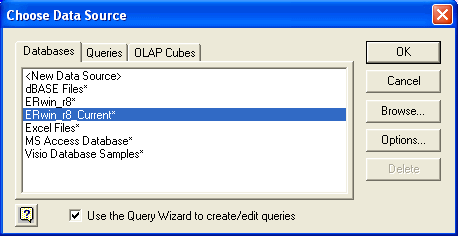
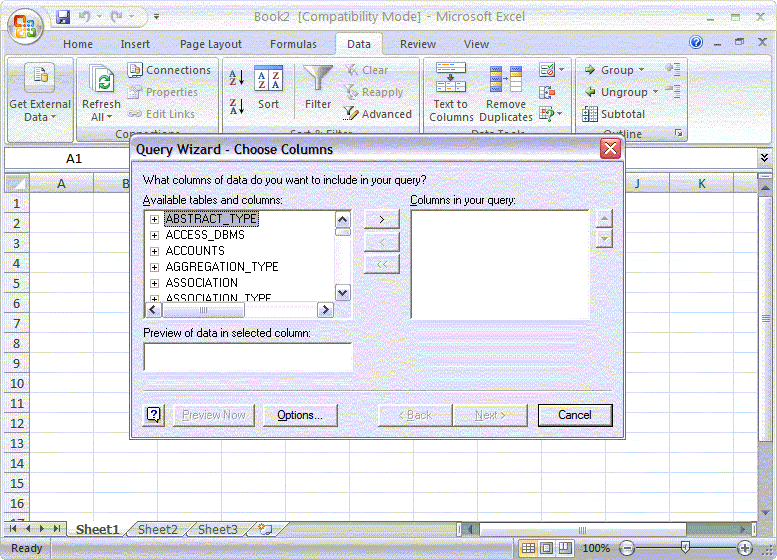
To connect to CA ERwin DM using Microsoft Office Excel 2007, follow this process:
| Copyright © 2011 CA. All rights reserved. | Tell Technical Publications how we can improve this information |