

|
|
|
After you create the mart database on your DBMS and install the product, you must create the mart to create the tables, install the stored procedures that manage client workgroup models in the mart, and prepare the mart for use with the clients (CA ERwin Data Modeler or CA ERwin Data Modeler Navigator Edition). To create, update, or delete a mart you must have the following database rights:
Notes:
For Oracle, you must be the database schema owner and have the DBA role.
Note: The mart and the CA ERwin Data Modeler Workgroup Edition Control Tables (m7Master and m7License) must be installed on the same database for Microsoft SQL Server or Sybase DBMS.
Important! You must have the CA ERwin Data Modeler Workgroup Edition and Initializer license files present on the machine before you create the mart.
To create the mart
The Connection Manager dialog opens.
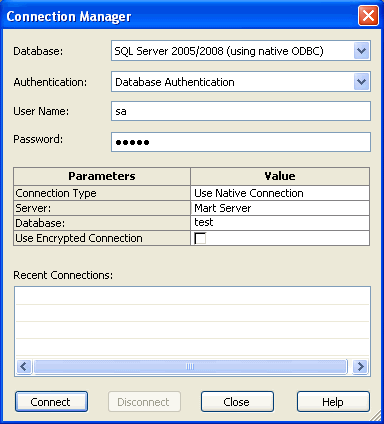
Identifies the type of relational database management system (DBMS) to which you are connecting. Select from the current list of supported databases.
Specifies the use of Windows user names and passwords to secure database access.
Specifies the use of a local user name and password for the connection.
Specifies the use of Native Connection to connect using the SQL Server Native client software or ODBC data to connect using the ODBC data source you have defined.
Identifies the server name.
Identifies the name of the database or mart.
Specifies the connection string (TNSNames entry).
You can select a database connection from the Recent Connections panel to populate the Database or Connection String previously used automatically.
The CA ERwin Mart dialog opens.
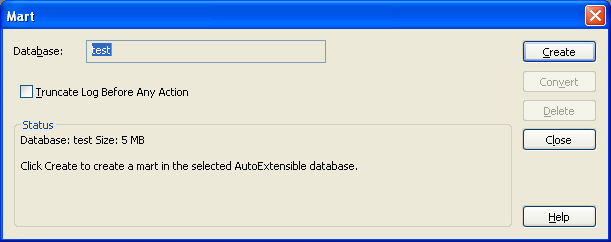
Identifies the master database name to create the tables and stored procedures.
Identifies the Oracle MMUSER security role. This role is created in the procedure for creating the mart database on Oracle. Other user roles can connect to the mart, but they will encounter access problems.
Indicates where you want to store the mart tables.
Note: The drop-down box is not active if there is only one tablespace.
Indicates where you want to store the mart indexes.
Note: You can store tables and indexes in the same tablespace or in different tablespaces.
Specifies to remove the database transaction log. Truncating the database transaction log is especially important for Microsoft SQL Server and Sybase users since a large transaction log can cause the database to hang.
Note: When you initialize a Microsoft SQL Server 2008 database, it is not necessary to select the "Truncate Log Before Any Action" option. If you select this check box, and click Create, the following error message displays: "Incorrect syntax near the keyword 'TRANSACTION'." To avoid this message, clear the check box for "Truncate Log Before Any Action" before you click Create.
The objects are created and the Security Manager dialog opens.
Important! If you do not see the Security Manager dialog, it can be hidden behind other open applications. Minimize all applications or use the Alt-Tab keys until you find it.
Your user name is automatically added to the Administrator profile in the Security Profile list.
Note: You can also assign security profiles after you create the mart.
The Setup Complete message opens.
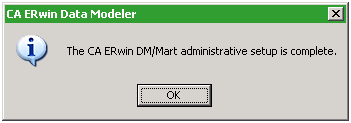
The mart is created.
| Copyright © 2011 CA. All rights reserved. | Tell Technical Publications how we can improve this information |