

|
|
|
Additional filter options are available in the Advanced Options pane, for example to filter by table owner, or to apply a case‑sensitive compare:
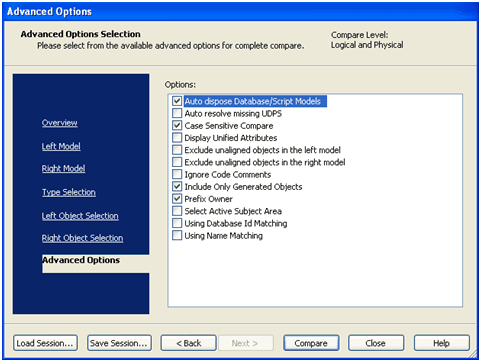
The advanced options include:
When working with a database or script file in the Complete Compare Wizard, select this check box to automatically close the model created from the database or script, when you end the compare session. The option to save the model is not displayed.
In some cases, the Type Resolution box appears when Complete Compare detects missing UDPs or property differences for common UDPs. You can select to skip the Type Resolution popup box when all the differences are due to missing UDPs. When you select this check box, all missing UDPs are automatically copied to the target model.
Perform a case-sensitive compare. This option affects both the alignment of objects in the object tree and the equality of property values in the property pane. When the option is cleared, case is ignored for the purposes of alignment and equality testing of text property values.
Select this check box to simplify the display of foreign-key attributes in the Resolve Differences dialog. When selected, a Unified Attributes group object is used to display all unified attributes (role-named or not) of the same unified set of attributes.
Any attributes that are aligned to the attributes under the Unified Group object appear as part of the Unified Group object, even if they are not unified attributes.
The Unified Attributes group object carries the unified name if all the attributes under it are part of the same unified set. If not, the name consists of a comma-delimited list of names of all the attributes under it.
Select or clear this check box to exclude or include unaligned model-level objects from the left model in the Resolve Differences dialog. Use this option as a filter to make it easier to distinguish between changes in a model subset you are working with (such as a subject area or submodel) and a larger model of with the subset is a part.
Select or clear this check box to exclude or include unaligned model-level objects from the right model in the Resolve Differences dialog. Use this option as a filter to make it easier to distinguish between changes in a model subset you are working with (such as a subject area or submodel) and a larger model of with the subset is a part.
Select this option to exclude blocks of comments from the body of a trigger, before including it in the compare process. This enables Complete Compare to recognize that a trigger has not changed, if the only difference is in the comment text attached to the trigger.
Each editor for a physical object includes a 'Generate' check box, which is selected by default. The 'Generate' check box indicates that you want to generate SQL for this object during forward engineering. When working with a database-level compare, the 'Include Only Generated Objects' check box is selected by default. If you clear this check box, the compare session will also include those objects for which you cleared the 'Generate' check box in the property editor.
Match by prefix table owner. When you select this option, objects are aligned based on both the name and owner name property.
Specifies that you want to select the active subject area by default in the Object Selection pane. This simplifies the subject area selection, especially in models that contain a large number of subject areas.
Match by Database ID. This option is available for Informix, Sybase, and SQL Server database servers only. When you select this option, objects are aligned based on the DB ID property if one is present.
Match by object name. When you select this option, relationship, index, and index members are aligned based on name, in addition to the normal criteria used to align these objects.
This option is available for the DB2 z/OS database server only. When the option is set, objects are aligned based on both the IN_TABLESPACE and IN_DATABASE properties if present on the object.
This option is available for the DB2 z/OS database server only. When you select this option, objects are aligned based on the Object ID property if one is present on the object.
| Copyright © 2011 CA. All rights reserved. | Tell Technical Publications how we can improve this information |