

|
|
|
You use the Members tab in the Subject Area Editor to identify the entities, tables, and views that are members of a subject area. Available Objects displays the available entities, tables, views that can be members of the selected subject area; Included Objects displays the entities, tables, and views that are currently members of the selected subject area.
Note: When you add members to a subject area, the objects are not added to the corresponding diagram automatically. You must add the objects manually.
To select the members of a subject area
The Subject Area Editor opens.
The Members tab opens.
Note: You can display either the logical names or physical names for objects. Under Display Names click Logical or Physical to toggle the display.
Displays objects that you can include as members of the selected subject area. Select one of the following options to include members to the subject area:
 )
)Moves the selected objects to the Included Objects section.
 )
) Moves all the objects in the Available Objects section to the Included Objects section.
 )
)When you select an object that you want to include in the subject area and click this icon, opens the Spanning Neighborhood dialog. Make your selections for the following options:
Ancestors
Specifies the number of ancestors to include in the subject area. Ancestors are the parents of an entity. Select All or select Level and enter the number of ancestors to include. Consider the following example:
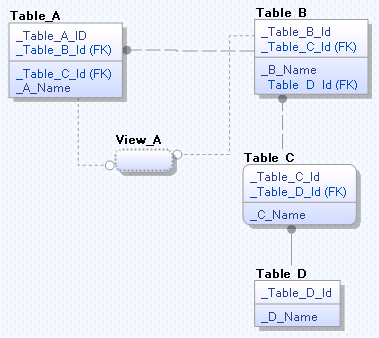
In this example, if you select Table _C and enter 2, the parent of Table_C, which is Table_B (level 1) and the parent of Table_B, which is Table_A (level 2) are included. If you select View_A and enter 2, only Table_A is included.
Descendants
Specifies the number of descendants to include in the subject area. Descendants are the children of an entity. Select All or select Level and enter the number of descendants to include. In the previous example, if you select Table_A and enter 2, the children of Table_A, which are Table_B and View_A (level 1) and the child of Table_B, which is Table_C (level 2) are included.
Opens the Subject Area Editor. From the Include all objects contained in list, select the subject area from which you want to include objects.
Displays objects that are currently included as members of the selected subject area. Select one of the following options to remove members from the subject area:
Displays all the objects in the current model in the Included Objects section.
 )
)Remove the selected objects from the Included Objects section and moves them to the Available Objects section.
 )
)Removes all the objects from the Included Objects section and moves them to the Available Objects section.
)When you select an object you want to exclude from the subject area and click this icon, opens the Spanning Neighborhood dialog. Make your selections for the following options:
Ancestors
Specifies the number of ancestors to exclude from the subject area. Select All or select Level and enter the number of ancestors to exclude.
Descendants
Specifies the number of descendants to exclude from the subject area. Select All or select Level and enter the number of descendants to exclude.
Opens the Subject Area Editor. From the Remove all objects contained in list, select the subject area from which you want to remove objects. The objects are removed from the current subject area.
 )
)Opens the object editor dialog so that you can edit the selected object.
| Copyright © 2011 CA. All rights reserved. | Tell Technical Publications how we can improve this information |