CA ERwin DM - Visual Studio Integration › Save a CA ERwin DM Model in VSTS Database Edition
Save a CA ERwin DM Model in VSTS Database Edition
When you add a CA ERwin DM model to a VSTS Database Edition project, a default model name is automatically created in the folder where your VSTS Database Edition database resides. For example, if you work with Database1 in the C:\My Documents\Visual Studio 2008\Projects\Database1 folder, then add a model, the default model name is Database1.erwin.
To save a CA ERwin DM model in VSTS Database Edition
- Click the Save icon on the main toolbar in CA ERwin DM.
Your changes are saved to the CA ERwin DM model. While CA ERwin DM and VSTS Database Edition are connected, you can continue to revise and save your model in CA ERwin DM as you work. It is important to know that the changes are only saved on the CA ERwin DM side, and are not automatically synchronized with VSTS Database Edition until you close the model.
- Click Exit on the File menu.
The Close Model dialog opens.
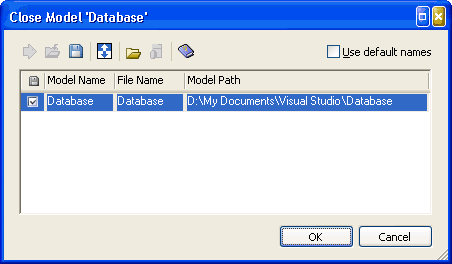
Important: Be sure to select the option to save your model on the Close dialog, or the model closes without saving the changes to the VSTS Database Edition project.
- Click OK.
The model closes, a permanent association with the VSTS Database Edition project is established for the model, the synchronization with VSTS Database Edition completes, and the connection closes.
Note: The model name is also added as an object in the Solution Explorer for your project in VSTS Database Edition.
Important! For future synchronization to be successful, do not move the CA ERwin DM model from its default location in the folder with the VSTS Database Edition project. If you move or rename the CA ERwin DM model, VSTS Database Edition will create a new model the next time you invoke the synchronization feature within VSTS Database Edition, and your originally synchronized model will not be used.