

|
|
|
You can customize any existing search. For example, you may want to change the data range. When you customize a search, it is added only to your searches list. It is not available to other users.
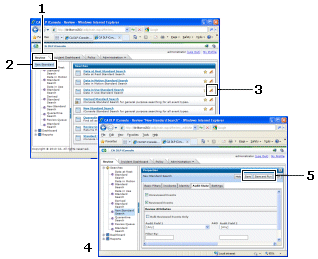
To customize an existing search
 (3) to customize a search.
The Search Properties screen displays (4). Settings are grouped into tabs, such as Search For and Event Attributes.
Find these buttons at the top right of the Search Properties screen.
Your new customized search ![iconsole icon customized search [2]](1477478.gif) is added to your Searches list.
is added to your Searches list.
| Copyright © 2011 CA. All rights reserved. | Email CA Technologies about this topic |