Policy Guide › Editing Policies in the Administration Console › User Policy Editor
User Policy Editor
The User Policy Editor is where you edit policies for user groups or individual users.
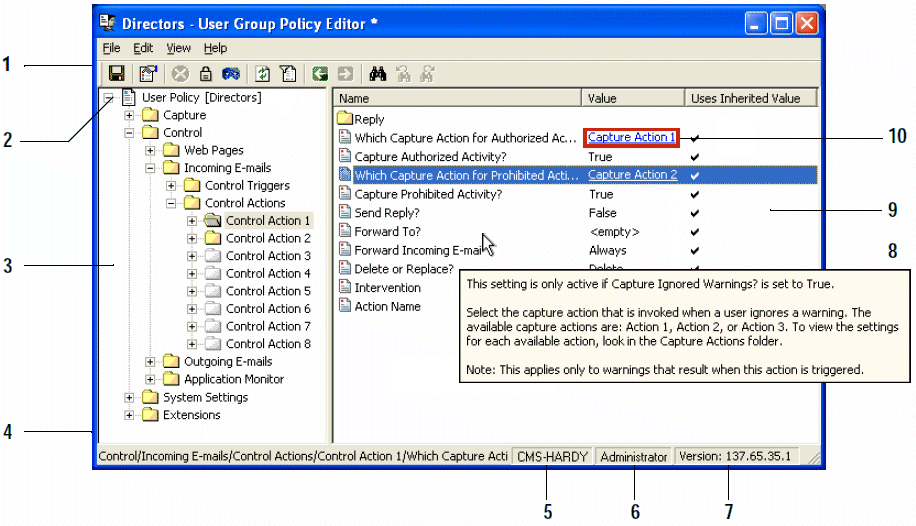
- Toolbar. Each screen has its own set of tools and features.
- Policy root. This indicates which user or group the current policy applies to.
- Policy folders pane. This shows all the folders available for viewing or editing in the current policy. Icon variations show the folder status (disabled, enforced or hidden).
- Policy path. This shows the location of the current folder or setting within the policy.
- CMS. This is CMS that you are currently logged on to.
- User name. This is the CA DLP logon name for the current console user.
- Policy version. Shows the current policy version number. This enables administrators to track policy updates.
- Policy explanations. Hover your mouse pointer over any folder or setting to see a tooltip explanation. Help is also available when you double-click a policy item.
- Contents pane. Shows the settings or subfolders in the current policy folder. Icon variations show the status of each setting or subfolder (disabled, enforced or hidden). You can also double-click a setting to view or edit its value.
- Hyperlink. Many settings are hyperlinked to a dependent setting. Click the hyperlink to jump to the specified setting.
More information:
Policy List Items
Wildcards and Policy List Items
Policy Version Numbers
Enforcing Modified Settings in Child Policies

