

|
|
|
Use partitions to create different views of the same objects for different users. Not every user uses every page or field in the product. You can simplify the user interface by defining what can be viewed in a partition and giving a user or a group of users access to the partition. You can set up partitions by department, geography, industry, division, legal structure, or any other method that your enterprise requires.
This explanation of partitions assumes the items that you want to include in the partition (for example, objects or attributes) exist. This explanation does not explain how to create items to include in the partitions.
Note: Partitions are an optional way to manage and extend the presentation of information. They are not required as part of the product setup.
A partition model is the top node (parent) of a partition hierarchy. All partition models belong to the System partition, the default product partition. You can create a partition model to fit any structure that your enterprise needs. You can add as many partitions as necessary to a partition model. You can also add partitions to partitions so that you can create a multilevel hierarchy if necessary. Each partition can contain its own version of information that is specific for its environment.
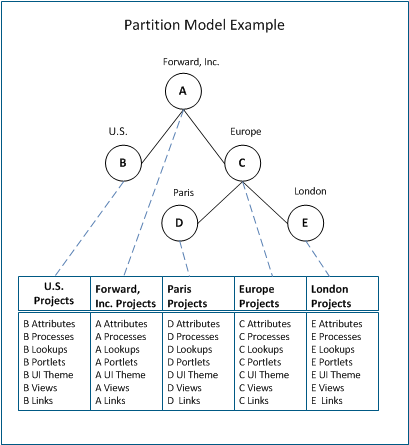
Example: A Partition Model
The following illustration shows a simple partition model. In the illustration, an administrator creates a partition model named Forward, Inc. with children partitions named U.S. and Europe. The Europe partition has additional children partitions for the Paris and London offices of the enterprise. The Paris, London, and U.S. partitions contain Project object attributes that are specific to those office locations. In this case, the administrator creates and adds custom attributes to the project object and assigns them only to the appropriate partition (U.S., Paris, or London). In this way, the functionality and other aspects of the Project object are shared across all users with the appropriate access rights. However, specific view settings for the Paris, London, or U.S. locations are available only to users who are assigned access to those partitions.
The following diagram describes how an administrator sets up partitions.
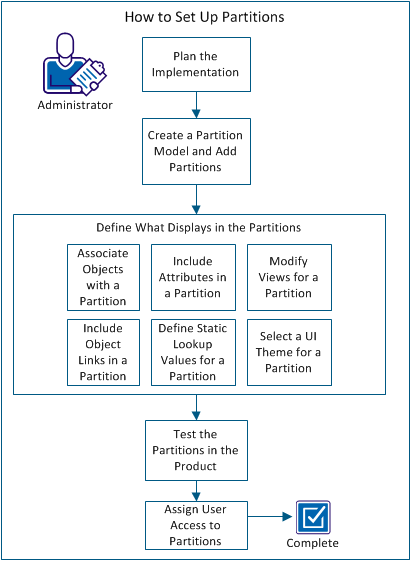
Perform these steps to set up partitions:
Note: You do not need to restart the product to enable partitioning; all partitioning configuration changes are immediately available. You can also export partition models and other items created in connection with partitioning from the product using the XML Open Gateway (XOG). When you export a partition model, only the partition model and its partitions are exported. Any objects or other settings that are associated with the partition are not exported.
| Copyright © 2012 CA. All rights reserved. | Tell Technical Publications how we can improve this information |
