

|
|
|
Open the dashboard details page to complete the dashboard layout. From the details page, you can:
To view the details page, open Home, and from Personal, click Dashboards, then click the name of the dashboard in the list that appears.
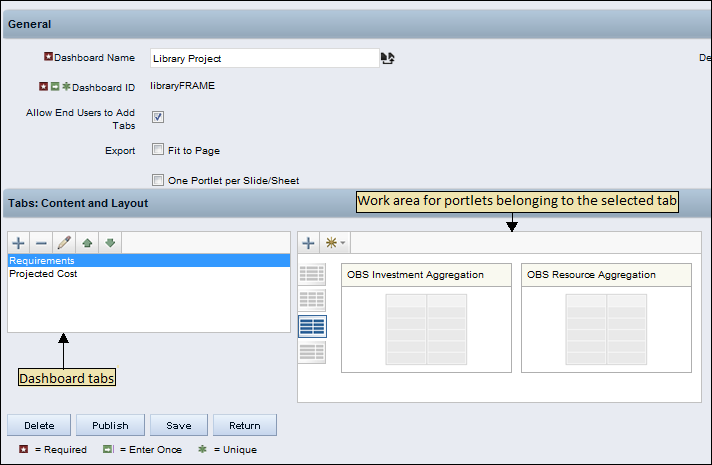
The following illustration shows the details page for a dashboard that has two tabs. In the Contents and Layout section, the Requirements tab is highlighted on the left and the portlets added to the tab show on the right. The toolbars for working with tabs and portlets are shown below the work areas. Mouse-over an icon in the toolbar to display its purpose.
Dashboard Layout Templates
To lay out a dashboard, select a template layout that determines the number of portlets appearing in a row and the percentage width for each portlet position. You can then add portlets and drag them to the position in the Content and Layout section.
A layout template provides a guideline for your displayed dashboard. If a portlet is large (a grid portlet with many columns), it can exceed the space allotted to it in a row. In this case, the portlet is not truncated. But a larger size is accommodated by moving portlets to another row when the dashboard displays. Hence, a displayed dashboard does not look exactly the way you design it in the Content and Layout section.
The following list shows the available templates available for dashboards.


| Copyright © 2011 CA. All rights reserved. | Tell Technical Publications how we can improve this information |