Guida SDK › Portal Integration › Dashboard
Dashboard
The CA Business Service Insight Dashboard allows users to host dashviews in external sites. This is accomplished by calling the DashboardWebPart.aspx page of the Dashboard.
When a dashview is hosted in an external site it is loaded in view mode only. Users cannot modify the dashview or any widgets on it. Users do, however, have all the viewing capabilities of the dashview, as follows:
- Analyze
- Details
- Refresh
- Notes (can add new notes)
- View
- Navigate
To host dashviews in an external site:
- Call the DashboardWebPart.aspx page with the dashviewId, username, and organization parameters.
- The URL should look like: http://[ServerName]/NewDashboard/DashboardWebPart.aspx?dashviewId=[]&username=[]&organization=[].
Note: This page performs a silent login to CA Business Service Insight in order to let the user view the dashview page.
For added security, the dashview page can be configured to allow access only to specific IP address(es). This is performed through the Internet Information Services (IIS) Manager.
To configure dashview page to allow access only to specific IP address(es):
- In Control Panel, double click on Administrative Tools. The Administrative Tools window is displayed.
- Double-click on Internet Information Services. The Internet Information Services (IIS) Manager window is displayed.
- Go to <machine name> (local computer) > Web Sites > CA Cloud Insight > NewDashboard.
- Right click on DashboardWebPart.aspx and select Properties. The DashboardWebPart.aspx Properties window is displayed.
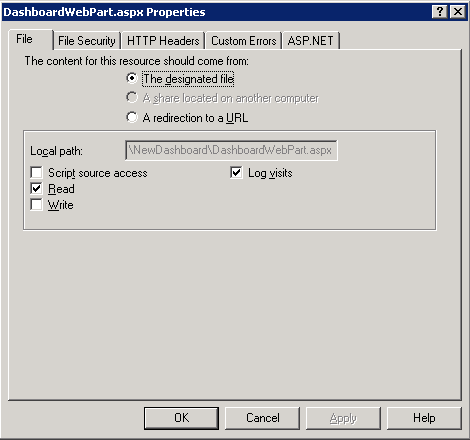
- Click on the File Security tab.
- In the IP address and domain name restrictions section, click Edit. The IP Address and Domain Name Restrictions window is displayed.
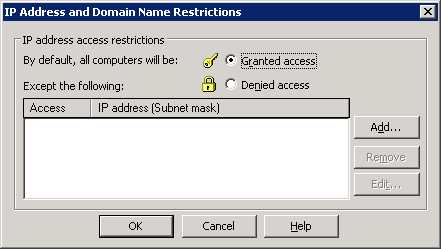
- Select Denied access.
- Click Add. The Deny Access window is displayed.
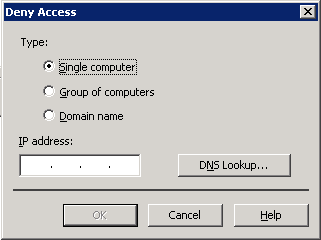
- Grant access to the desired IP address and click OK.

