

|
|
|
After maintenance has been downloaded for a product, you can manage the maintenance in an existing SMP/E product installation environment.
Note: While you are working with a particular CSI, the CSI is locked and other CA MSM users cannot perform any action against it. The lock is released when the task is finished, you log out from CA MSM, or your CA MSM session has been inactive for more than 10 minutes.
The following installation modes are available:
Receives the maintenance and applies it to the selected SMP/E environment.
Receives the maintenance and checks if the maintenance can be applied to the selected SMP/E environment.
Receives the maintenance, checks if the maintenance can be applied to the selected SMP/E environment, and applies it if it can be applied.
Receives the maintenance.
The process starts a wizard that guides you through the maintenance steps. At the end of the wizard, a task dynamically invokes the SMP/E and other utilities required to apply the maintenance.
Note: You can also manage maintenance to an SMP/E environment using the SMP/E Environments, Maintenance tab.
Follow these steps:
Maintenance information appears at the right for the releases you have.
The maintenance information is updated.
The maintenance packages are listed, for example:
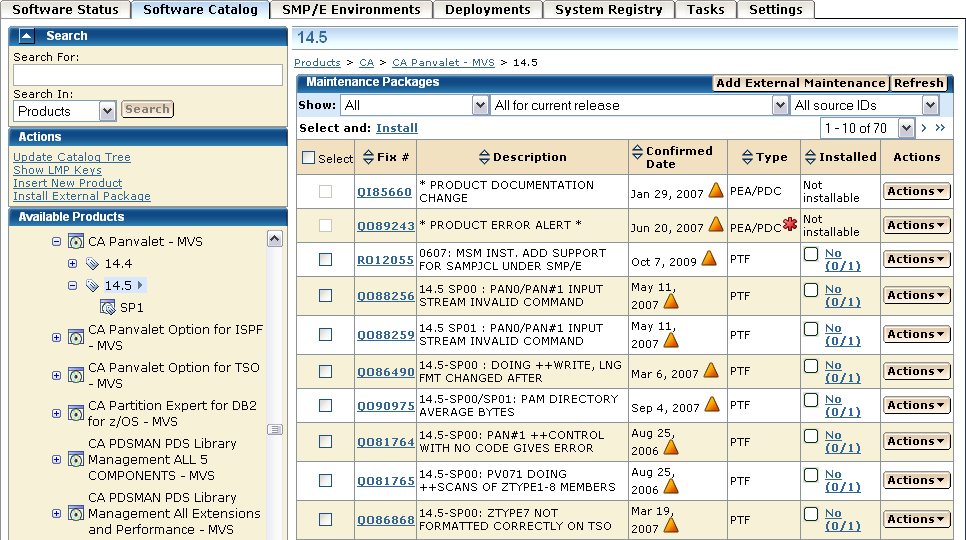
Red asterisks identify HIPER maintenance packages.
The Maintenance Package Details dialog appears, identifying any prerequisites.
Note: The Installed column indicates whether a package is installed.
The Introduction tab of the wizard appears.
The packages to install are listed.
The SMP/E environments that contain the product to maintain are listed. Only environments in your working set are listed.
Note: If you select a CSI that is being used in CA MSM by another user, a notification message appears. You are prevented from performing any actions on the CSI. You can either wait until the notification message disappears and the CSI becomes available, or click Cancel to select another CSI.
SMP/E work DDDEFs of SMPWRKx and SYSUTx, along with their allocation parameters, are listed.
Note: For more information about SMPWRKx and SYSUTx data sets, see the IBM SMP/E for z/OS Reference.
Note: Changes in the allocation parameters apply to the current maintenance installation only.
A pop-up window opens.
The pop-up window closes, and the DDDEF entry is selected in the list indicating that the allocation parameters have been overridden.
Note: To automatically update allocation parameters for all DDDEFs, click Retrieve DDDEF. CA MSM provides values for all DDDEFs based on the total size of the selected maintenance packages to be installed. All DDDEF entries are selected in the list indicating that the allocation parameters have been overridden.
Note: The allocation parameters may differ from the allocation parameters that you obtained using the Retrieve DDDEF button.
A summary of the task appears.
A dialog opens that shows the progress of the task. When the task completes, you can click Show Results on the Progress tab to close this dialog and open the task output browser to view the action details. Click Close to close the task output browser.
Note: While a task is in progress, you can perform other work. You can click Hide to exit the dialog and view the task status later on the Tasks tab.
The task applies the maintenance. You can accept the maintenance (except USERMODs) using the SMP/E Environments, Maintenance tab. As a best practice, CA MSM prevents you from accepting USERMODs.
| Copyright © 2011 CA. All rights reserved. | Tell Technical Publications how we can improve this information |