

|
|
|
When you install a CA Technologies product on z/OS systems, you must license the product on each system that uses the product. You do this by entering CA Common Services for z/OS CA License Management Program (LMP) statements. You can download LMP keys through the Software Catalog tab so that the keys are available for you to enter manually. The Show LMP Keys action retrieves the keys for the products to which your site is entitled.
Follow these steps:
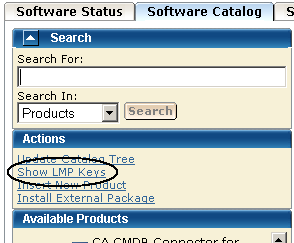
A list of LMP keys retrieved for the indicated site ID appears.
The list is refreshed for the selected site ID.
If the list is empty or if you want to update the lists, proceed to the next step.
You are prompted to confirm the update.
The LMP keys are retrieved. On completion of the retrieval process, the LMP keys are listed for the selected site.
Note: You can use the Refresh Site IDs button to refresh the information on the page.
| Copyright © 2011 CA. All rights reserved. | Tell Technical Publications how we can improve this information |