

|
|
|
Initially, the CA MSM software catalog is empty. To see available products at your site, update the catalog. As new releases become available, update the catalog again to refresh the information. The available products are updated using the site ID associated with your credentials on the CA Support Online website.
If you update the catalog tree and some changes are missing, check your user settings on the CA Support Online website.
Follow these steps:
Note: The information on the Software Status tab for HIPERs and new maintenance is based on the current information in your software catalog. We recommend that you update the catalog on a daily or weekly basis to keep it current.
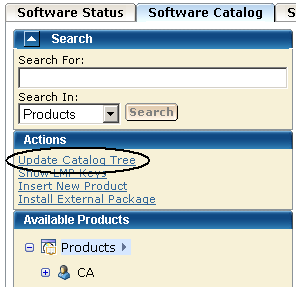
You are prompted to confirm the update.
A dialog opens that shows the progress of the task. When the task completes, you can click Show Results on the Progress tab to close this dialog and open the task output browser to view the action details. Click Close to close the task output browser.
Note: While a task is in progress, you can perform other work. You can click Hide to exit the dialog and view the task status later on the Tasks tab.
| Copyright © 2011 CA. All rights reserved. | Tell Technical Publications how we can improve this information |