Managing Business Rules › How to Create a Rule › How to Create a Rule Automatically › Select Database, Table, and Data Columns
Select Database, Table, and Data Columns
To select Database, Table, and Data Columns
- Under Available Data Columns, from the Database drop-down list, select one of the available databases.
The available tables in that database are refreshed.
- Select a table from the Table drop-down list. The column names are populated automatically from the table you select. At this point they are only column names - they are not (yet) business terms.
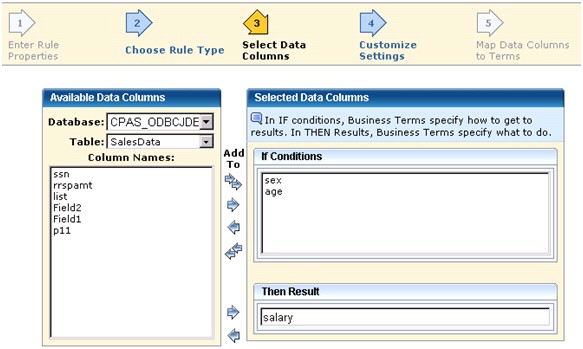
- Select the column name(s) from the Column Names window to be used in the If part of the rule.
The If conditions let you specify what is necessary in order to affect the selected results.
- Click the Select arrow
 . Click the Select All arrow
  to select every column name in the list.
- Select the column name from the Column Names window to be used in the Then part of the rule.
The Then condition lets you choose the business terms you will be assigning values to depending on the conditions tested.
- Click Next to adjust Column and Rule Building Settings.