

|
|
|
CA Access Control Enterprise Management provides reporting capabilities through a CA Business Intelligence Common Reporting server (CA Access Control Report Portal). After installing the Report Portal and deploying the reports, you need to configure the connection from CA Access Control Enterprise Management to CA Business Intelligence. You use the CA Identity Manager Management Console to configure this connection.
To configure the connection to CA Business Intelligence
The Reports Properties window appears.
Important! The CA Business Intelligence Central Management Server (CMS) is used for internal management purposes only and does not contain the report data that is used to generate and display the reports. For more information about the CMS, see the CA Business Intelligence Installation Guide.
Note: For more information, see the CA Identity Manager Management Console Online Help, which you can access from the application.
Important! In the Business Objects Port field, enter the port number that the Report Portal uses. The default port is 8080. In the Business Objects Report folder field, enter CA Access Control r12.
The CA Business Intelligence settings are saved.
Note: For more information about CA Business Intelligence, see the CA Business Intelligence Installation Guide, which is available from CA Technologies Support.
SSL, including Transport Layer Security (TLS) provides secure communications between computer programs. By default, the Enterprise Management Server components do not use SSL for communication.
By default, the Enterprise Management Server components do not use SSL for communication. You configure the Enterprise Management Server to communicate with CA Business Intelligence over SSL using the CA Identity Manager Management Console and by modifying the CA Business Intelligence Server. When you configure SSL communication to CA Business Intelligence, data is encrypted between the CA Business Intelligence Server and Enterprise Management Server.
The following illustration shows the process to configure SSL communication to CA Business Intelligence.
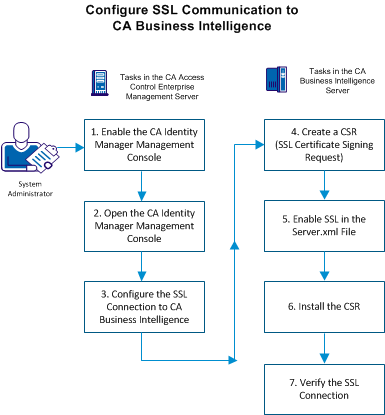
To configure SSL communication to CA Business Intelligence, follow these steps:
| Copyright © 2012 CA. All rights reserved. | Tell Technical Publications how we can improve this information |