Perform Scenario Management Tasks › Create a New Scenario › Create Oracle HA Scenario
Create Oracle HA Scenario
Protecting Oracle databases using CA ARCserve RHA requires scenarios that identify the Master and Replica servers, as well as properties that control scenario behavior. Auto-discovery is used to protect only one Oracle instance in one scenario. If you want to protect more than one Oracle instance in one scenario, use the File Server scenario type.
To create an Oracle HA scenario
- Start CA ARCserve RHA Manager. From the Scenario menu, choose New or click the New Scenario button.
- From the Welcome dialog, choose Create a New Scenario, choose a scenario group and click Next.
- From the Select Scenario and Product Type dialog, select Oracle, High Availability Scenario (HA), the desired Tasks on Replica, if any, and then click Next.
- From the Master and Replica Hosts dialog, type a Scenario Name, enter the Hostname or IP Address and Port number for both Master and Replica servers, and then click Next.
- Wait for Engine Verification to complete. If prompted for User Credentials, enter the appropriate information. If the Engine service is not installed or not the correct version, click Install to upgrade it on one or both servers, then Verify Again. When complete, click Next.
The Database Connection dialog opens.
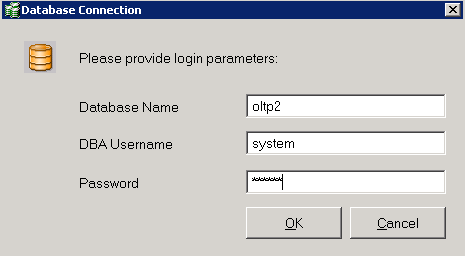
- Enter the database name, DBA username and password and click OK. Enter credentials for an account with administrative privileges in the database so that CA ARCserve RHA can query the Oracle configuration on the Master server.
For the database name, use the database "connection string" configured in the Oracle client configuration file tnsnames.ora on the Master server.
Note: If you are using a 32-bit Oracle version on a 64-bit operating system, you must enter the full database path in the Database Name field, in the following format:
IP/Database_Name
Example:
172.16.80.10/DB1
Enter the DBA Username and Password as usual and click OK.
- When the Tablespaces for replication dialog appears, review the list of results auto-discovered on the Master Server. Clear and select databases for replication, as desired, enable the "Replicate new user created files in listed root directories" option and click Next.
Selecting this option automatically replicates tablespaces to Oracle databases as you add them. If this option is not selected, CA ARCserve HA replicates only the databases selected at configuration time.
- From the Root Directories dialog, review the list of folders to be replicated and click Next.
- From the Scenario Properties dialog, configure the settings that control the entire scenario. For more information, see the CA ARCserve RHA Administration Guide. For Oracle scenarios, we recommend enabling the Replicate NTFS ACL option, under Replication, Optional Settings. Click Next.
- From the Master and Replica Properties dialog, configure the desired settings and then click Next.
- Wait for the Switchover Properties dialog to appear. Configure the redirection settings as described in IP Redirection, and then click Next.
- From the Switchover Initiation dialog, configure the desired Initiation options and click Next. We recommend setting only one of these to Automatic.
Note: If you selected Assured Recovery in the Tasks on Replica options, that dialog appears now. For more information, see the CA ARCserve RHA Administration Guide.
- From the Scenario Verification dialog, ensure no errors or warnings appear. While warnings do not prevent a scenario from running as errors do, both should be corrected before you proceed. Once successfully verified, click Next.
- Click Run Now to start data synchronization or click Finish to run the scenario later.

