

|
|
|
CA ARCserve D2D On Demand lets you specify the subscription settings. The Subscription tab is your central source for using CA ARCserve D2D On Demand and is used to configure your account. Without this account configured, active, and verified, CA ARCserve D2D On Demand will not have a license and will not be able to perform any backup or file copy operations.
Specify the subscription settings
The Subscription settings dialog opens.
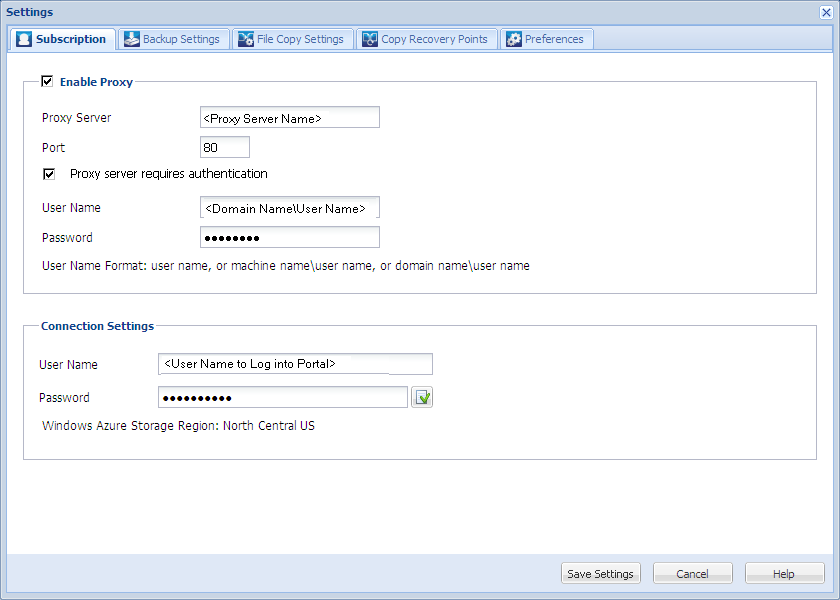
Enter the Proxy Server name and corresponding Port number (by default, this Port number is 80). If necessary, select the Proxy server requires authentication option and provide the corresponding credential information (User Name and Password) to access this proxy server.
After you input the password, click the Verify button on the right side of the Password field to verify the password.
Note: If the validation passed, the Windows Azure Storage Region will display the selected region from the ARCserve On Demand Portal.
Your subscription settings are saved.
| Copyright © 2012 CA. All rights reserved. | Tell Technical Publications how we can improve this information |