

|
|
|
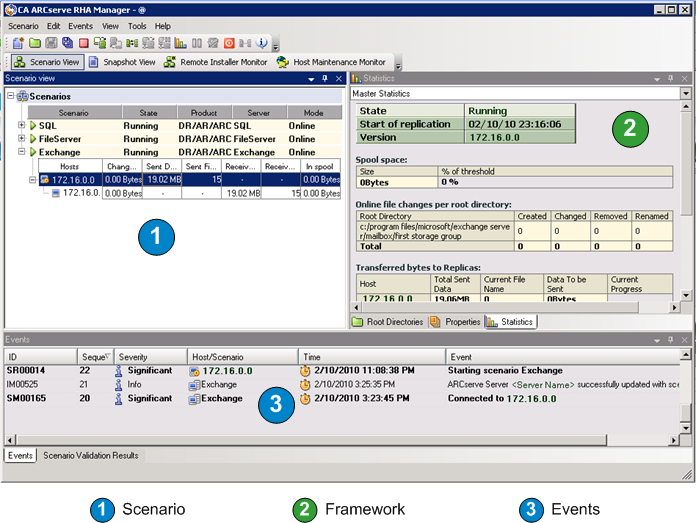
CA ARCserve Replication creates and maintains backups in the context of user-defined scenarios. Before you back up a CA ARCserve Replication scenario, you must run the scenario so that it is added to the CA ARCserve Backup database.
To run a CA ARCserve Replication scenario
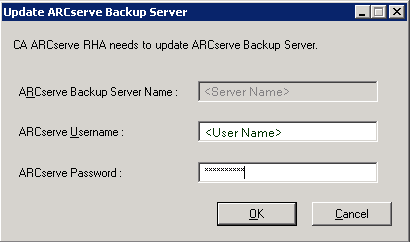
The ARCserve Backup Server Connection dialog is displayed with the name of the server.
The selected scenario is now added to the CA ARCserve Backup database and can be backed up.
Note: You can perform backups only when CA ARCserve Replication is in the replication mode (green arrow icon next to scenario name).
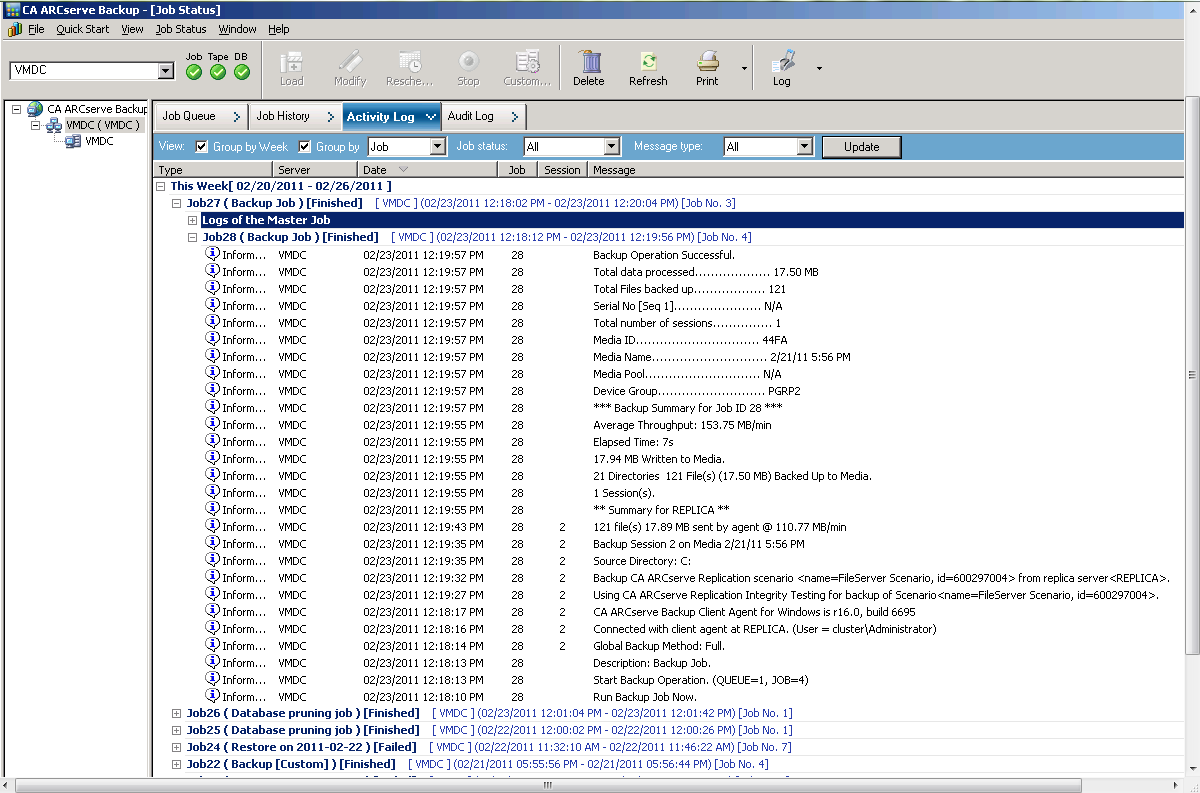
The CA ARCserve Backup Activity Log is updated to reflect any CA ARCserve Replication operations related to creating, deleting, or modifying scenario records in the CA ARCserve Backup database.
| Copyright © 2012 CA. All rights reserved. | Tell Technical Publications how we can improve this information |