Using Dashboard › Troubleshooting Dashboard › Dashboard Troubleshooting › Dashboard does not display data after a previous CA ARCserve Backup database has been restored
Dashboard does not display data after a previous CA ARCserve Backup database has been restored
If the CA ARCserve Backup Dashboard does not display any data after you have restored an older version of the CA ARCserve Backup Database, perform the following troubleshooting procedure:
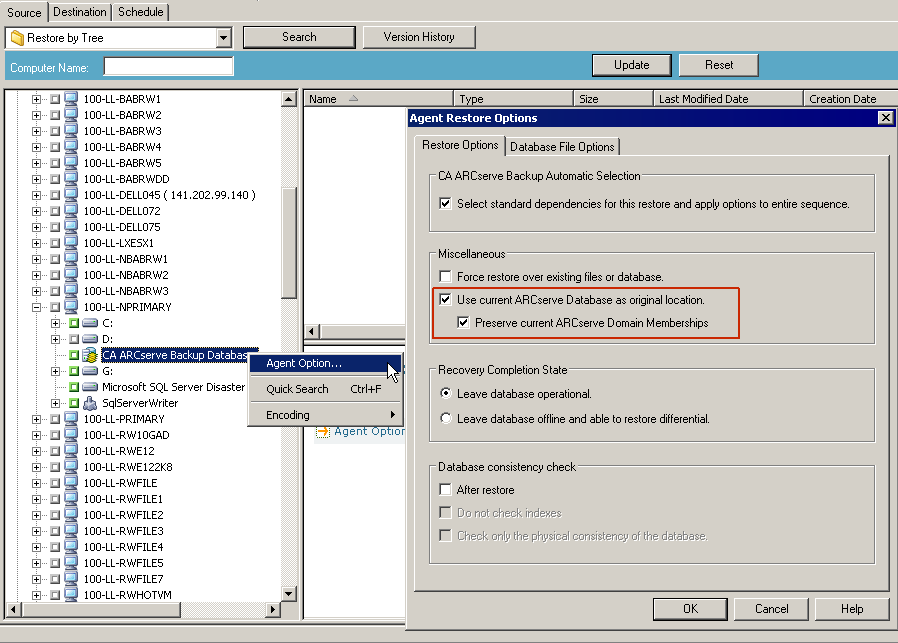
- If you have not restored the CA ARCserve Backup Database, make sure that you specify to include the "Preserve current ARCserve Domain Memberships" option as follows to avoid this problem:
- From the Restore Manager, select the CA ARCserve Backup Database to be restored.
- Right-click and from the pop-up menu, select Agent Option.
The Agent Restore Options dialog appears.
- Right-click and from the pop-up menu, select Agent Option.
- From the Restore Options tab, select the "Use current ARCserve Database as original location" and also select the associated "Preserve current ARCserve Domain Memberships" option.
- If you have already restored the CA ARCserve Backup Database (and if the "Preserve current ARCserve Domain Memberships" option is not selected), you need to enter the CA ARCserve Backup Database credentials using Server Configuration Wizard as follows:
- Close CA ARCserve Backup Manager on the new primary server
- Launch the Server Configuration Wizard and choose the Select Database option.
- Provide the necessary information in the subsequent screens until you reach SQL Database System Account screen. If the "DB overwrite" alert message appears, click OK.
- Clear the check mark from the Overwrite the existing "ARCserve_DB" instance option to retain your previous data and click Next.
- After the Server Configuration Wizard completes the updates, click Finish.
- Close the Server Configuration Wizard, open CA ARCserve Backup Manager, and launch Dashboard.

