

|
|
|
When a CA ARCserve Backup server is configured as cluster-aware, all critical CA ARCserve Backup services will be monitored by MSCS. If some service fails, MSCS will try to restart it or trigger a failover if the restart attempt fails. This means that you can no longer stop a service by using the CA ARCserve Backup Server Administrator. If you attempt to stop a CA ARCserve Backup service, the following message opens:
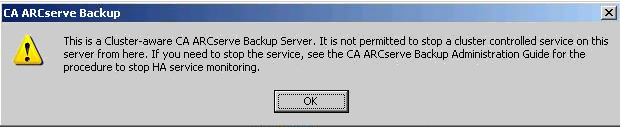
In some situations, you may want to stop CA ARCserve Backup services. For example, you may need to stop various services so that you can perform hardware maintenance.
Note: For information about how to perform this task on Windows Server 2003 systems, see Stop MSCS From Monitoring CA ARCserve Backup Services on Windows Server 2003 Systems.
To stop MSCS from monitoring CA ARCserve Backup services on Windows Server 2008 systems
The Cluster Administrator dialog appears.
Note: Cluster Administrator is a utility provided by Microsoft and is installed on servers that have MSCS installed. From the Cluster Administrator, you perform most of the configuration and management tasks associated with clusters.
The ARCserve HA Properties dialog opens.
Click the If resource fails, do not restart option, and then click OK.
With this option specified, MSCS will not try to restart the CA ARCserve Backup services automatically or initiate the failover process.
Note: All CA ARCserve Backup services are controlled by the ARCserve HA resource. However, the Tape Engine service and ASDB service are also controlled by additional resources. See the following table to identify the resources that need to be changed for each CA ARCserve Backup service. For each of the applicable resources, you need to set the Advanced property to Do not restart.
|
Service Name |
Controlling Resources |
|
Tape Engine |
ARCserve HA ARCserve Registry |
|
ASDB (only for SQL2008 Express) |
ARCserve ASDB ARCserve HA ARCserve Registry |
|
Others (DB Engine, Job Engine, …) |
ARCserve HA |
| Copyright © 2012 CA. All rights reserved. | Tell Technical Publications how we can improve this information |