
The process of recovering VMware VMs lets you recreate the entire VM and restore its data. Using this process you can recover a VM from a disaster and clone a VM.
Browsing the Recover VM Window
The Recover VM window lets you browse, select, and modify various fields. When you rest your mouse pointer over an editable field, the background color of the field appears yellow, as illustrated by the following:
To modify an editable field, select the target field and then click the ellipsis to browse the field as illustrated by the following:

Considerations
Be aware of the following considerations:
Note: For information about VMware Converter, see http://www.vmware.com/products/converter.
To recover VMware virtual machines
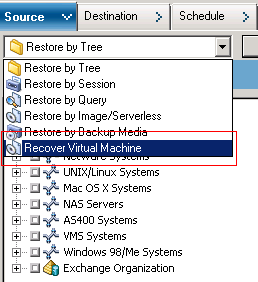
The Recover Virtual Machine window opens.
The Virtual Machine Name specified displays in the VM list.
All the VMs in your environment display in the VM list.
The Virtual Machines equaling the search criteria display in the VM list.
Example: Using 100-* returns the names of all VMs that start with 100-, such as 100-1, 100-01, and 100-001.
All the VMware VMs in your environment display in the VM list.
Note: CA ARCserve Backup processes the restore operations sequentially when you specify more than one VM.
You can accept the Backup Version displayed or click in the Backup Versions field and then click the ellipsis to search for multiple versions of the backup data.
You can accept the Proxy Machine displayed or click in the Proxy Machine field and then click the ellipsis to search for and specify a different backup proxy system.
You can accept the Path displayed or click in the Path field to specify an alternate path for the temporary VM mount directory.
You can accept the VMware ESX Host Name displayed or click in the VMware ESX Host Name field and then click the ellipsis to search for and specify a different VMware ESX Host system.
You can accept the Data Store name displayed associated with the VMware ESX Host system or click in the Data Store field to specify the Data Store of the target VMware ESX Host system.
Note: Data Store is a case-sensitive value.
The Global Options dialog opens.
Note: The options that follow do not appear on the Operation tab unless the Recover Virtual Machine method is specified.
Default value: Enabled.
Example: Specify this option when you must use the VM immediately after the recovery is complete.
Default value: Enabled.
When you restore a VMware VM, CA ARCserve Backup detects the VMs that reside in the host system. If the VM exists in the host system, this option lets you overwrite the VM using the existing VM UUID and host name.
Note: For troubleshooting information, see The Agent Does Not Delete Existing VMs after a Recover VM Job Completes.
The options are applied.
The Submit Job dialog opens.
Enter a description for your job and click OK.
The job is submitted.
Note: For more information about submitting jobs, see the Administration Guide.
| Copyright © 2010 CA. All rights reserved. | Email CA about this topic |