Note: If the CA ARCserve Backup Installation Browser does not appear, run Setup.exe from the root directory on the installation media.
From the right column on the Product Installation Browser, click Install CA ARCserve Backup for Windows.
The Prerequisite Components dialog opens.
Note: The Prerequisite Components dialog opens only if Setup does not detect CA ARCserve Backup Prerequisite Components installed on the target computer.
The following list describes dialog-specific information about upgrading CA ARCserve Backup from a previous release.
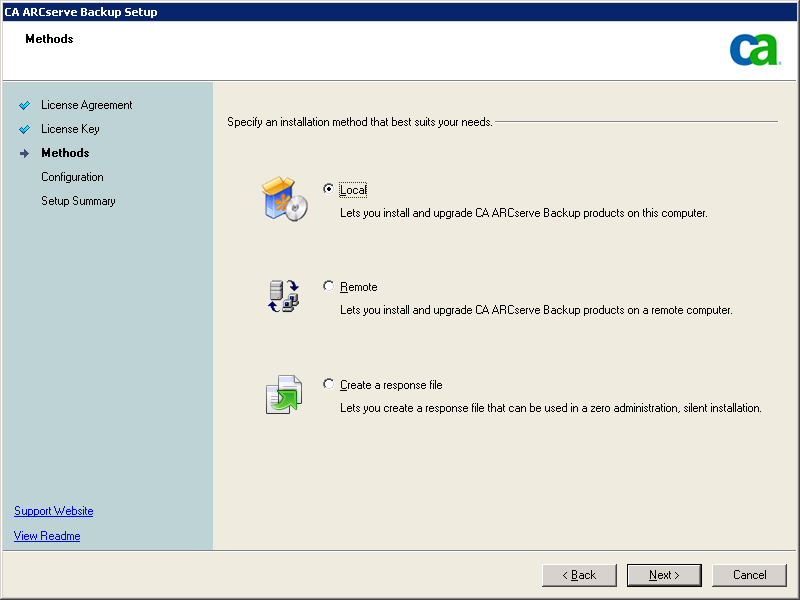
- Methods dialog
If you are upgrading from a previous release to an ARCserve Primary Server, you must select the Local Installation/Upgrade option. CA ARCserve Backup does not support the following types of upgrades:
- Upgrade from a previous release to an ARCserve Primary Server on a remote system.
- Silent upgrade from a previous release to an ARCserve Primary Server on a system using a response file.
- Upgrade from a previous release on a remote system and retain the previous Manager.
- Silent upgrade from a previous release using a response file and retain the previous Manager.
Note: For more information, see Manager Console Support for Previous Releases.
For all other types of upgrades, select the option corresponding to the task that you want to perform.
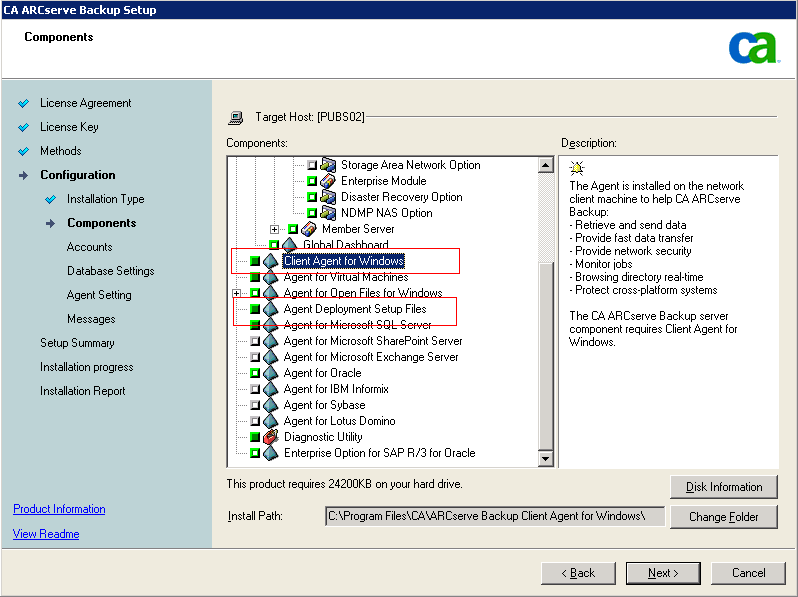
- Components dialog
Lets you specify the CA ARCserve Backup components that you want to install on the target system.
Be aware of the following considerations:
- To install a primary server, you must install the CA ARCserve Backup Central Management Option on the primary server.
- To install member servers, the installation wizard must be able to detect the CA ARCserve Backup domain name and primary server name in your network. Therefore, you should complete at least one primary server installation before you perform member server installations.
- When you click the CA ARCserve Backup object or the Server object on the Select Products dialog, the installation wizard specifies the default Stand-alone Server installation components, regardless of the installation type that you specified on the Select Install/Upgrade Type dialog. To ensure that you are installing the correct components, expand the Server object, expand the object for the type of CA ARCserve Backup server that you want to install, and check the check boxes corresponding to the components that you want to install.
- Agent Deployment is a wizard-like application that lets you install or upgrade CA ARCserve Backup agents on multiple remote systems, after you install CA ARCserve Backup. To support this capability, Setup must copy Setup source files to the CA ARCserve Backup server. To copy the contents of the installation media to the CA ARCserve Backup server, you must select Agent Deployment on the Components dialog. When you select Agent Deployment, the length of time required to install or upgrade CA ARCserve Backup increases significantly.
- If you are performing a remote installation or a silent installation, do not install the CA ARCserve Backup Client Agent for Windows into the same directory as the CA ARCserve Backup base product.
- Global Dashboard can be installed on primary servers, stand-alone servers, and member servers. However, you cannot configure member servers to function as Central Primary Servers and Branch Primary Servers. For more information about Central Primary Servers and Branch Primary Servers, see the Dashboard User Guide.
The following diagram illustrates the default installation path for the Client Agent for Windows and Agent Deployment is specified:
- Manager Console Options dialog
Select the Keep the current ARCserve Manager Console option only if there are ARCserve servers in your environment that are running a previous release of BrightStor ARCserve Backup. When you select this option, Setup prompts you to install CA ARCserve Backup into an alternate location on your computer.
When you specify to install the new Manager Console support files into the same directory where previous manager support files reside, the installation wizard prompts to install the Manager Console support files into an alternate location.
Note: CA ARCserve Backup does not support retaining the Manager console from the previous release when you are performing a remote upgrade and a silent upgrade using a response file.
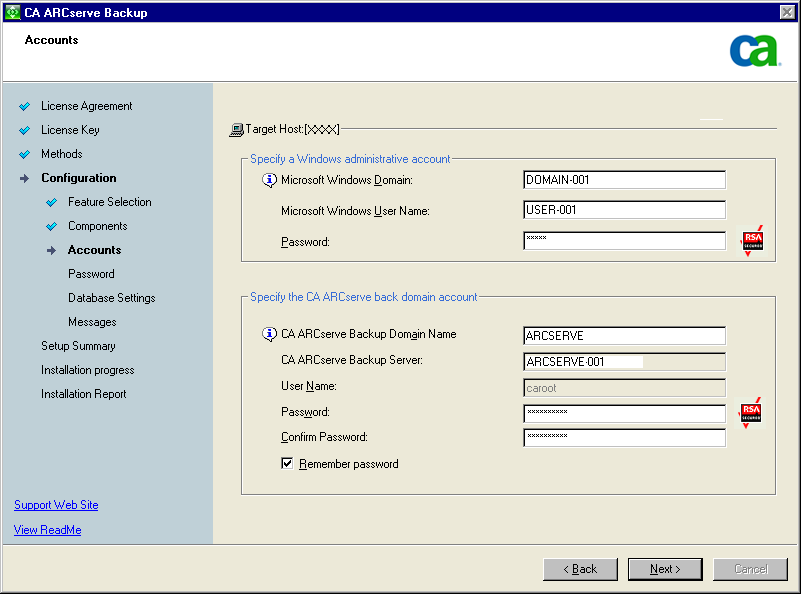
- Accounts dialog
If Setup detects a cluster-aware application running in your environment, and you want to install CA ARCserve Backup in the cluster-aware environment, check the Cluster Environment Installation option and specify the path where you want to install CA ARCserve Backup.
Note: CA ARCserve Backup server names and CA ARCserve Backup domain names cannot exceed 15 bytes. A name totaling 15 bytes equates to approximately 7 to 15 characters.
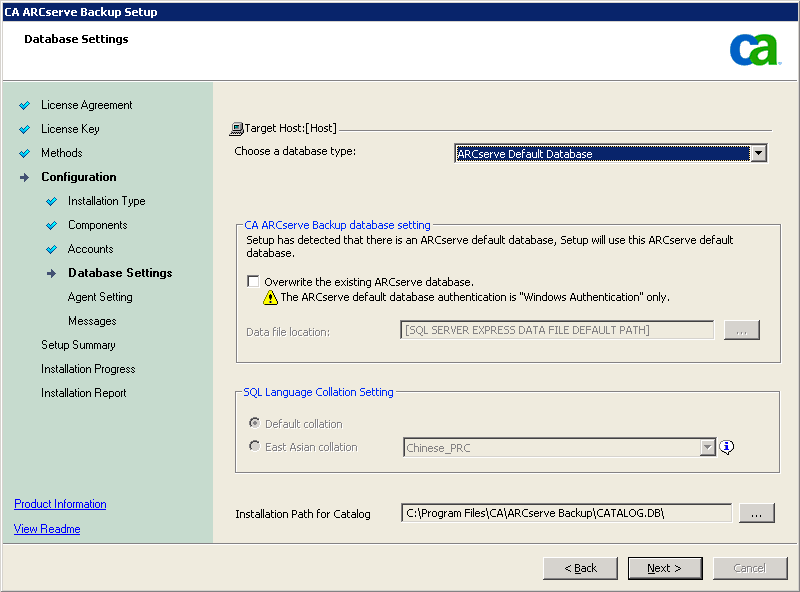
- Database Settings dialog
Lets you configure the CA ARCserve Backup database.
After you specify a database application (Microsoft SQL Server or Microsoft SQL Server 2008 Express Edition) complete the required fields on this dialog.
Note: If you protect data that contains Unicode-based characters from East Asian languages (for example, JIS2004) you must enable SQL collation to ensure that CA ARCserve Backup can search and sort the data. To do this, click East Asian collation and then select a language from the drop-down list.
- Messages dialog
After you review the messages in the Important Warning Messages dialog, you should attempt to resolve the problems at this time.
- Setup Summary dialog
To modify the components that you want to install, click Back as often as necessary to return to the dialog containing the installation options that you want to change.
- Installation Summary dialog
If any components you select require configuration, Setup displays the necessary configuration dialogs at the end of the installation. You can configure the component immediately or configure it later using Device Configuration or Enterprise Module Configuration. For example, if you are using a single-drive autoloader that requires configuration, Setup lets you start Device Configuration by double-clicking the message for it on the Install Summary dialog.
- License Verification dialog
To enter license keys, locate the components, agents, and options that you are installing, select the Use License Key option, and enter the license key for the component.
Click Continue to close the License Verification dialog.
Click Finish on the Installation Summary dialog to open the CA ARCserve Backup Server Migration dialog.
- CA ARCserve Backup Server Data Migration dialog
Specify the data that you want to migrate. For more information about data migration, see Data Migration from a Previous Release.
Important! The CA ARCserve Backup Server Data Migration dialog does not appear when you upgrade from CA ARCserve Backup for Windows r12, CA ARCserve Backup for Windows r12 SP1, and CA ARCserve Backup for Windows r12.5 to this release.