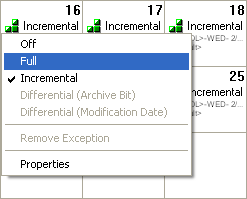
If you are using a rotation scheme for a backup job, there may be a day on which you want to change the regularly scheduled type of backup to something else. For instance, you may decide that you want to perform a full backup on a day on which an incremental backup is scheduled. Or you may not want to perform any backups at all on a day on which a full backup has been scheduled. In either case, you can create an exception and modify the type of backup scheduled to take place. If you decide later that an exception is no longer needed, you can remove the exception, and CA ARCserve Backup automatically reverts to the regularly scheduled type of backup.
Adding an Exception
To add an exception:
Note: If the Use Rotation Scheme option button is not selected, then you are using a Custom Schedule and cannot add an exception. Instead, modify your backup schedule using the options associated with the Custom Schedule option button.
Note: You must run a full backup on the first day of the rotation. You cannot create an exception for this day.
Modifying and Removing Exceptions
To modify an exception:
To remove an exception:
Exceptions View
As an alternative to working with exceptions using the Calendar View, you can use the Exceptions view to add, modify, and remove exceptions. The Exceptions view is particularly useful for removing a large quantity of exceptions. It also provides you with an overview of all the exceptions you have in place for the current job / scheme.
| Copyright © 2010 CA. All rights reserved. | Email CA about this topic |