Installing and Upgrading CA ARCserve Backup in a Cluster-aware Environment › Deploy CA ARCserve Backup Server on NEC Cluster › Upgrade CA ARCserve Backup from r11.5 to r15 in an NEC CLUSTERPRO Environment
Upgrade CA ARCserve Backup from r11.5 to r15 in an NEC CLUSTERPRO Environment
This section describes the steps you must perform to upgrade from earlier software versions to the current release. Please ensure you are following the appropriate upgrade procedure:
- To upgrade BrightStor ARCserve Backup from r11.5, including the latest service packs, in an NEC CLUSTERPRO cluster-aware environment, directly to r15, follow this procedure.
- To upgrade CA ARCserve Backup r12, including the latest service packs, to r15 in an NEC CLUSTERPRO cluster-aware environment, follow the steps in Upgrade CA ARCserve Backup from r12 to r15 in an NEC CLUSTERPRO Environment.
This section describes the steps that you must perform to upgrade BrightStor ARCserve Backup r11.5, including the latest service packs, in an NEC CLUSTERPRO cluster-aware environment, to CA ARCserve Backup r15. For information about how to upgrade CA ARCserve Backup r12 in a NEC CLUSTERPRO cluster-aware environment to this release, follow the steps described in Upgrade CA ARCserve Backup from a Previous Release.
When upgrading CA ARCserve Backup from r11.5 to r15 in an NEC CLUSTERPRO environment, the following procedure must be performed to safely protect your clustered backup data. If you are not already using CA ARCserve Backup r11.5 in a cluster environment, you do not need to perform this procedure. The procedure supports the following CA ARCserve Backup r11.5 upgrade scenarios in an NEC CLUSTERPRO environment:
- Upgrade BrightStor ARCserve Backup r11.5 with a RAIMA database to CA ARCserve Backup r15 on a Primary Server with a Microsoft SQL Server 2008 Express Edition database
- Upgrade BrightStor ARCserve Backup r11.5 with a remote Microsoft SQL Server database to CA ARCserve Backup r15 on a Primary Server with a Microsoft SQL Server database
- Upgrade BrightStor ARCserve Backup r11.5 with a RAIMA database to CA ARCserve Backup r15 on a Member Server
- Upgrade BrightStor ARCserve Backup r11.5 with a remote Microsoft SQL Server database to CA ARCserve Backup r15 on a Member Server
This upgrade procedure is assuming you are operating in a two-node cluster environment, with Node A representing the initial Active Node and Node B representing the initial Passive Node.
To upgrade CA ARCserve Backup from r11.5 to r15 in an NEC CLUSTERPRO environment
On Node A:
The following diagram provides a graphic overview of the initial tasks being performed for Node A during this upgrade procedure.
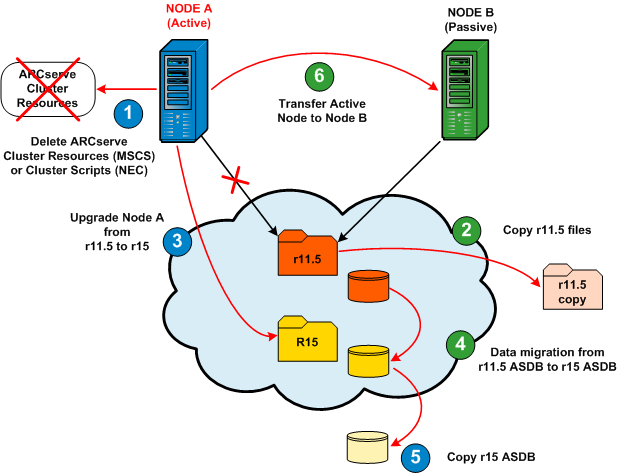
- Disable the NEC Cluster Scripts and delete the Registry Sync. For more information, see Disable CA ARCserve Backup in NEC Cluster Scripts.
- Copy the CA ARCserve Backup r11.5 installation directory files into a temporary location.
A backup copy of the CA ARCserve Backup r11.5 files is located in different location from the original files.
- Perform CA ARCserve Backup r15 upgrade installation for Node A. For more information, see Upgrade CA ARCserve Backup from a Previous Release.
Important! During the upgrade installation, you will be prompted to specify the installation path location for r15. Do not specify the same location where the r11.5 is currently located. To avoid difficulties during the upgrade and possible loss of information (job scripts saved in the queue), you must select a different location for the r15 installation.
- CA ARCserve Backup for Node A is upgraded from r11.5 to r15. Do not set up new ARCserve cluster resources at this time.
- When the upgrade is complete, the Server Data Migration dialog appears. The Server Data Migration dialog allows you to migrate information stored in the previous ARCserve database into a new ARCserve database. Do not launch the data migration process at this time.
Note: For primary server upgrades, the CA ARCserve Backup database engine must be manually started prior to migrating the data.
- For primary server upgrades only, do the following:
- Open the Windows Computer Management console.
- Expand Services and Applications and then click Services.
- Right-click CA ARCserve Database Engine, and click Start on the pop-up menu.
- Right-click CA ARCserve Domain Server, and click Start on the pop-up menu.
- Right-click CA ARCserve Message Engine, and click Start on the pop-up menu.
- Close the Windows Computer Management console.
Note: When CA ARCserve Backup services start, the corresponding status indicates Started.
- Open the CA ARCserve Backup installation directory on the CA ARCserve Backup server.
In the CA ARCserve Backup installation directory, locate and double-click servermigration.exe.
The Server Data Migration dialog opens.
- From the Server Data Migration dialog, click Start.
The specified CA ARCserve Backup data is migrated from r11.5 to r15.
- For SQL Express upgrades only. Using the Windows Service manager, right-click the SQLE instance (mssql$arcserve_db) and from the pop-up window, select Stop.
When the SQLE instance is stopped, the corresponding status will become blank and no longer indicate Started.
- For SQL Express primary server upgrades only. Copy the SQL ARCserve database directory (SQLASDB) into a temporary location.
A backup copy of the SQLASDB directory is located in a different location from the original directory.
- Move the active node from Node A to Node B as follows:
- Access the Cluster Manager.
The Cluster Manager dialog appears.
Note: Cluster Manager is a utility provided by NEC and is installed on servers that have NEC CLUSTERPRO installed. Cluster Manager is accessed from the NEC ExpressCluster Server group of the Start menu. From the Cluster Manager, you perform most of the configuration and management tasks associated with clusters.
- Select the NEC Group that the ARCserve server is deployed in, and locate the corresponding ARCserve cluster resources. Right-click on each ARCserve cluster resource and from the pop-up menu, select Move Group.
- If there are only two nodes in the cluster, the active node status will automatically be transferred from the initial active node (Node A) to the other node (Node B) and making Node B the active node and Node A the passive node.
- If there are more than two nodes in the cluster, a pop-up screen will appear, allowing you to select which node you want to transfer the active status to. When you select the node for transfer, the specified node will become the active node and the previously-selected node will become the passive node. Repeat this procedure for each node in the cluster.
On Node B:
The following diagram provides a graphic overview of the initial tasks being performed for Node B during this upgrade procedure.
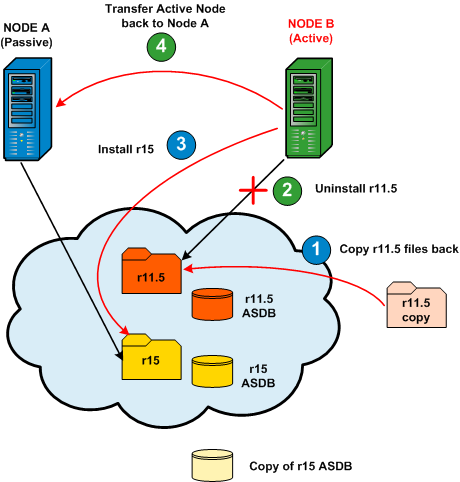
- Copy the CA ARCserve Backup r11.5 installation directory files from the temporary location back into the original location.
The CA ARCserve Backup r11.5 files are now located back in the original location.
- Uninstall CA ARCserve Backup r11.5 from Node B.
CA ARCserve Backup r11.5 is uninstalled.
Important! During the CA ARCserve Backup r15 new installation on Node B, do not select the "Overwrite DB" option to prevent overwriting the ARCserve database that was migrated during the CA ARCserve Backup r15 upgrade to Node A.
- Perform CA ARCserve Backup r15 new installation for Node B with the same settings selected for Node A (domain name, server type, install path, installed options …). For example, if r15 was installed on Node A as a primary server, then CA ARCserve Backup r15 must be installed on Node B also as a primary server. For more information, see Install CA ARCserve Backup.
CA ARCserve Backup r15 is installed on Node B. Do not set up new ARCserve cluster resources at this time.
- Move the active node from Node B back to Node A as previously described.
Node B is now the passive node and Node A is the active node.
On Node A:
The following diagram provides a graphic overview of the final tasks being performed for Node A during this upgrade procedure.
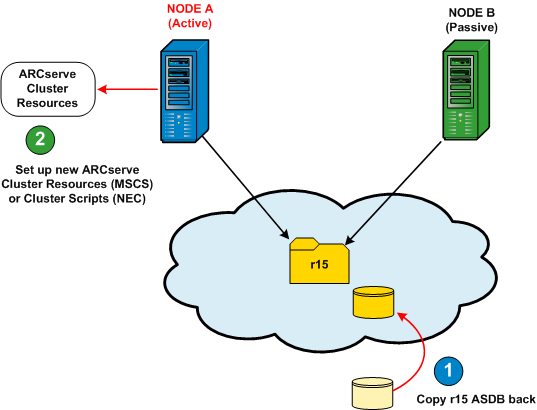
- For SQL Express primary server upgrades only. Copy the SQL ARCserve database directory (SQLASDB) from the temporary location back into the original location.
The backed-up copy of the SQLASDB directory replaces the SQLASDB directory created during the r15 installation.
- Rebuild the NEC Cluster Scripts and Registry Sync. For more information, see Enable CA ARCserve Backup in NEC Cluster Scripts.
The new NEC HA scripts are created and the registry is synchronized.
- To ensure that all CA ARCserve Backup services start properly on the CA ARCserve Backup server, you must execute the cstop and cstart scripts on the CA ARCserve Backup server before you open the CA ARCserve Backup Manager Console. The cstop and cstart batch files are stored in the CA ARCserve Backup installation directory on the CA ARCserve Backup server. For more information about using cstop and cstart, see the Administration Guide.
Note: CA ARCserve Backup does not support recovering the CA ARCserve Backup database when the last backup of the CA ARCserve Backup database was completed before you upgraded to this release. As a best practice, you should back up the CA ARCserve Backup database as soon as possible after the upgrade is complete. For information about backing up the CA ARCserve Backup database, see the Administration Guide.