Backing Up Data › Submit Static Backup Jobs
Submit Static Backup Jobs
The Enable Static Backup option lets you submit scheduled backups of source groups and computers and maintain a static set of source volumes. With static backups, you can submit staging and deduplication backups that consist of full, incremental, and differential backups.
Static backups affect only the immediate subordinate objects of the source group or the computer specified when the job was submitted. Subsequent backups will not include objects and volumes that were added to the source group or the computer after you submitted the backup. CA ARCserve Backup backs up the original source volumes dynamically. Subsequent job executions will include changes to the files and folders contained in the original source volumes.
Examples: How Static Backup Works
A computer contains drive c:\ and drive d:\ when you submit the job.
- Drive e:\ was appended to the computer after the job completed. The next time the job runs, CA ARCserve Backup backs up drive c:\ and drive d:\. Drive e:\ is not backed up.
- Directory c:\documents was appended to drive c:\ after the job completed. The next time the job runs, CA ARCserve Backup backs up all of drive c:\, including c:\documents, and drive d:\.
- Drive d:\ was deleted from the computer after the job completed. The next time the job runs, CA ARCserve Backup backs up drive c:\ and reports a failed backup of drive d:\.
A source group contains computers A, B, C, and D when you submit the job. Computer A contains drive c:\.
- Computer E was added to the source group after the job completed. The next time the job runs, CA ARCserve Backup backs up computers A, B, C, and D. CA ARCserve Backup does not back up computer E because it was not included in the original source group.
- Drive d:\ was appended to computer A after the job completed. The next time the job runs, CA ARCserve Backup backs up computers A, B, C, and D and drive d:\ in computer A. CA ARCserve Backup behaves in this manner because computer A was included in the original backup source group, and CA ARCserve Backup backs up the volumes in the source group dynamically.
To submit static backup jobs
- Open the Backup Manager and click the Start tab.
The backup types appear.
- Select Normal backup.
Click the Source tab.
The Source directory tree appears.
- Select Classic View from the drop-down list.
Browse to the computer that you want to back up.
- Click the check box next to the computer name.
- Right-click the computer and click Enable Static Backup on the pop-up menu.
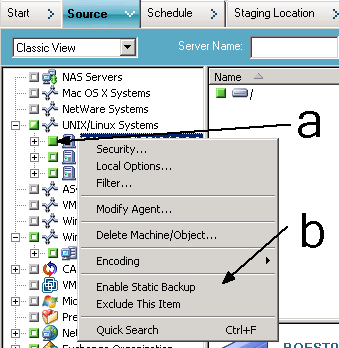
The Static Backup option is applied to the computer, as illustrated by the following screen:
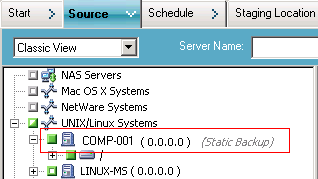
Note: The Static Backup option remains applied to the specified computer until you disable this option. You can repeat this step to disable the Enable Static Backup option.
- Click the Schedule tab and specify the schedule that you want to use for the backup job.
Note: For more information, see Rotation Schemes and Custom Schedules.
- Click the Destination tab.
The Destination groups directory tree appears.
- Specify the group that you want to use to store the backup data.
The storage group is applied.
- Click Options on the toolbar.
The Options dialog opens.
- Specify the options that you require for the job.
Note: For more information, see Global Backup Options.
Click OK.
The backup options are applied.
- (Optional) Expand the contents of the computer.
Select a drives or volume contained in the computer.
Repeat the previous two steps to apply options to the drive or volume.
(Optional) Repeat this step for all drives or volumes in the computer.
- Click Submit on the toolbar.
The Submit Job dialog opens.
- Complete the required fields on the Submit Job dialog and click OK.
The job is submitted.