Managing Devices and Media › Device Manager › Configure Libraries to Function as VTLs
Configure Libraries to Function as VTLs
Read performance improves when you configure a library to function as a virtual tape library (VTL). This capability lets CA ARCserve Backup maximize drive efficiency and overall VTL backup and data migration performance.
Important! You should not configure a physical library to function as a VTL. The library's backup and data migration performance can be adversely affected when configured to function as a VTL.
Before you can configure libraries to function as VTLs, ensure the following prerequisite tasks are complete:
- Ensure that the Tape Library Option is licensed.
- Ensure that the VTLs are properly configured using Device Configuration.
- Ensure that CA ARCserve Backup detects the VTLs.
To configure libraries to function as VTLs
- From the Administration menu in the Navigation Bar on the Home Page, select Device.
The Device Manager window opens.
- From the Server directory tree, locate the VTL.
Right-click the VTL and select Library Properties from the pop-up menu.
The Library Properties dialog opens.
- Select the General tab.
In the VTL (Virtual Tape Library) section, check the Library is a VTL check box and click OK. CA ARCserve Backup ignores specified media expiration dates when you select this option.
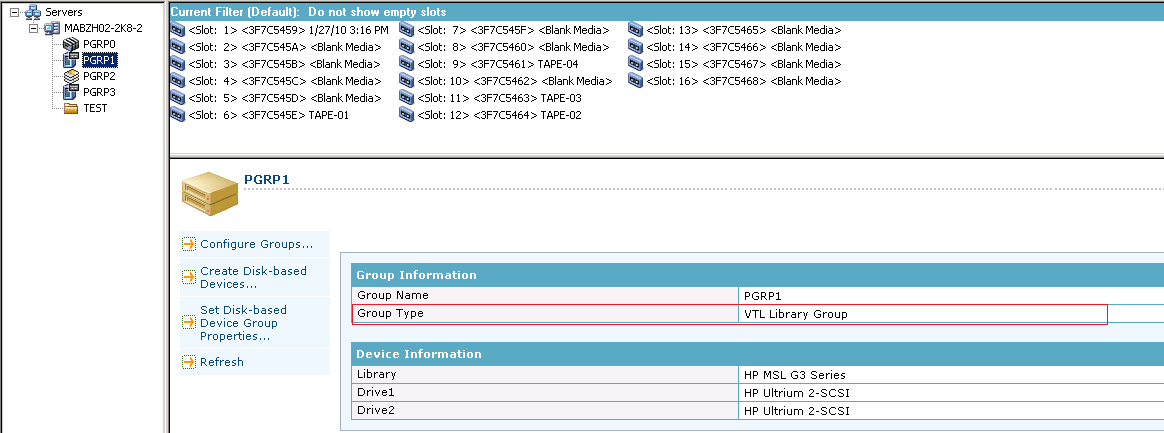
The library is identified as a VTL in the Backup Manager, Destination tab as illustrated by the following screen:
Note: If you do not want to identify a library as a VTL, repeat the above steps and remove the check mark from the Library is a VTL check box.