Right-click the library and select Library Properties from the pop-up menu.
The Library Properties dialog opens.
Modify the following General options as required for your library:
- Bar code reader installed--If your library contains a bar code reader, this option lets you use the bar code reader in the device to inventory the tapes in the library.
- Set unknown bar code media to not inventoried during initialization--To enable this option, you must first select the Bar code reader installed option.
This option lets CA ARCserve Backup initialize faster by designating media with a bar code that is not recorded in the CA ARCserve Backup database as "Not Inventoried." This option prevents CA ARCserve Backup from inventorying the "not inventoried" slots as the Tape Engine starts. Media that is designated as not inventoried can remain in its slot until you need it. To use media that is designated as "Not Inventoried," you must inventory the media using the Manual Inventory option from the Device Manager window.
- Library Quick Initialization--This option is designed for libraries that cannot read bar codes. With this option enabled, CA ARCserve Backup retains information about the library's slots in the CA ARCserve Backup database. As a result, CA ARCserve Backup does not repeat the inventory process when the Tape Engine is restarted. CA ARCserve Backup ignores this option on libraries that contain a bar code reader.
Note: If the library does not support bar codes and this option is disabled, CA ARCserve Backup inventories the entire library when CA ARCserve Backup starts.
This option lets CA ARCserve Backup initialize faster by bypassing the inventory slots process when the Tape Engine starts. When you use this option, CA ARCserve Backup assumes that the media in the slot have not been added, removed, moved, or swapped since the last shutdown. If you added, removed, moved, or swapped media, you should manually inventory the entire library or inventory the slots that changed.
Note: CA ARCserve Backup must inventory the library after you configure the library. The quick initialization option takes affect after you complete the first full inventory of the library.
- Eject media upon backup job completion--Lets you direct CA ARCserve Backup to move the tapes back to their original slots after the backup job is complete rather than allow them to remain in the drives.
Note: You can override this option on a job-by-job basis by enabling the global option for jobs called Do not Eject Media. In addition, if you do not enable the ejection of media after a backup job completes and later decide that you want to eject media after a particular job, you can enable the global option for jobs called Eject Media.
- Library is a VTL--This option lets you set up a library to function as a virtual tape library (VTL).
Be aware of the following behavior:
- CA ARCserve Backup ignores media expiration dates when you select this option.
- Read performance improves when you identify a library as a VTL. This capability lets CA ARCserve Backup maximize drive efficiency and overall VTL backup and data migration performance.
- You should not identify a physical library as a VTL. When you identify a physical library as a VTL, the library's backup and data migration performance can be adversely affected.
Modify the following Cleaning options as required for your library:
- Clean by slot--Lets you designate specific slots as cleaning slots. You can specify one or more cleaning slots and they do not need to be in a successive order.
- Clean by Barcode--Lets you specify cleaning slots for your library based on a specific bar code or a range of bar codes using a prefix and a wildcard character. In the Clean Bar Code Prefixes field, enter the prefixes of your bar coded cleaning tapes.
Specify the bar code prefixes into the Clean Barcode Prefix(s) field as illustrated by the following:
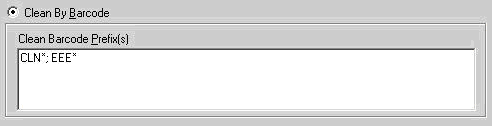
Note: The asterisk is a wildcard character.
Click OK.
The cleaning slots are set based on their bar code prefix.
Examples:
- The bar code on your cleaning tape is CLN123. In the Clean Barcode Prefix(s) field, specify CLN123.
- There are several cleaning tapes in your library. The bar code prefix for the cleaning tapes is ABC. In the Clean Barcode Prefix(s) field, specify ABC*.
- There are several cleaning tapes in your library. The cleaning tapes' bar code prefixes are ABC, CLN1, and MX. In the Clean Barcode Prefix(s) field, specify ABC*; CLN1*; MX*.
- Automatic tape cleaning--Lets you direct CA ARCserve Backup to manage your tape cleaning tasks automatically. When you enable this option you must specify the number of hours that must elapse between cleaning tasks.
The library is configured.