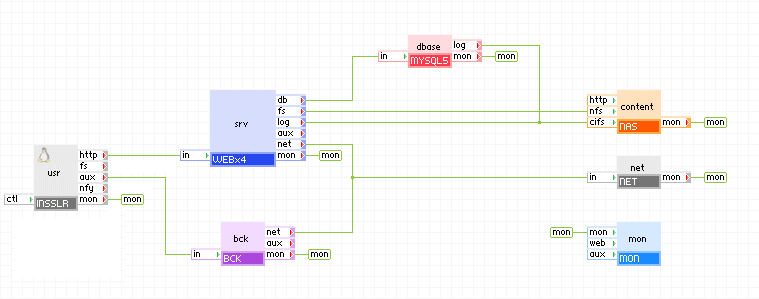
This is a step-by-step example for setting up a LampX4 application to use the BCK backup enabler. The steps outlined in this topic can be used to add backup and restore capabilities to any application.
The BCK appliance must be able to authenticate on the grid on which it is running. To help ensure this, create a public/private key pair in openssh format without a passphrase. Create a user on the grid whose public key corresponds to the generated public key. To do this, follow steps 1-3 below.
                  -----BEGIN RSA PRIVATE KEY-----
                  MIICWwIBAAKBgQC1dXZ8vewm32WeHIbYhsbY3e5WI6BfvAC0YR5dXqzUVqPnniKd
                  gMWR3lReoxo8m49b9gL3Vkbb9l5gDAmcXO9NiYw1rWkTFdxvIBmwhuDkinRFfgnR
                  Sa1SiaLZ2FD0zGsf4pxIC73ke+qv8IhoNJkHW/QXviMG9RQB+HO1thf9zwIBJQKB
                  gQCOOXiLSMACysVEkuY7AdofmTBtByqr5mFqyKkYv9ORq7Dl+Hv+6GOAKsyBhsGJ
                  cwGo8UCYWGENRI8or30nhxxr4D9dU9XgwXrZBMSmWesUzd2tYVbbSVfhgnCX/5tN
                  +O2ffCHiWpDwCYKnv5AeBUpNxzDTUSTiEa6q+HJm6/i7hQJBAPJ+jMA2UecfAwuS
                  2ztowizyZLrwD/SaShM0MfE7fp1fAoyKn38TsyVMRE+VPGUMAJXTsKyW4Gubq18l
                  CprcIL0CQQC/kK1wlKJs2hCS22IoMbhfratG6Ls1SqIfdRIcjRuHhKohn85fvE6I
                  Ryusir7jSLUx6u+GtV5hQTXX6NhYGP97AkA6/DATFCHCmNc6KqQHiC87XY4foi1l
                  Au9sdHrZ0DOOEDENbdPE9vQ5gUEMcGii9RTmLJLCMomdomf0jHgzgacZAkAZ4x5b
                  Ulsjd2oGAfiB+OGQY5OvoujdsCO/D9ID27ecsRASYbQaxmt6MyGT22XnXNo3LZX9
                  cnSJrt3DOyQnlKznAkEAoohf8gEZ2oGoCddod+DjLMNLBjmM/2Z+4G+VC3eDbOpr
                  9T1libLcXZl/HeISHIx1n518z85eppZMQs6Xb3fHeQ==
                  -----END RSA PRIVATE KEY-----
user create bck@my_domain.com pwd=- sshkey="ssh-rsa AAAAB3NzaC1yc2EAA ... v0F74jBvUUAfhztbYX/c8="
Provision an instance of LampX4 and connect the BCK appliance as shown in the diagram below. Name the BCK appliance bck.
4. Set the INSSL gateway properties to forward tcp traffic on port 8080 to the aux terminal:
5. Create a small volume to hold the BCK configuration data. Right-click on a blank area of the canvas and select Manage Volumes. Click add to create a new volume and provide the following volume information:
6. Configure the BCK instance settings:
7. Configure the BCK instance with the private key.
8. Point a browser at port 8080 of the application IP (the in_ip property of LampX4) to bring up the web interface for the BCK (for example, http://1.2.3.216:8080/) . Now you can backup the application.
| Copyright © 2011 CA. All rights reserved. |
|