

|
|
|
You can change the usage of a field on a device and conditionally set the display attributes.
To Change the panel’s format relations
Note: The selected field must be a field in the first subfile record excluding the subfile select field.
The Edit Screen Format Relations panel appears.
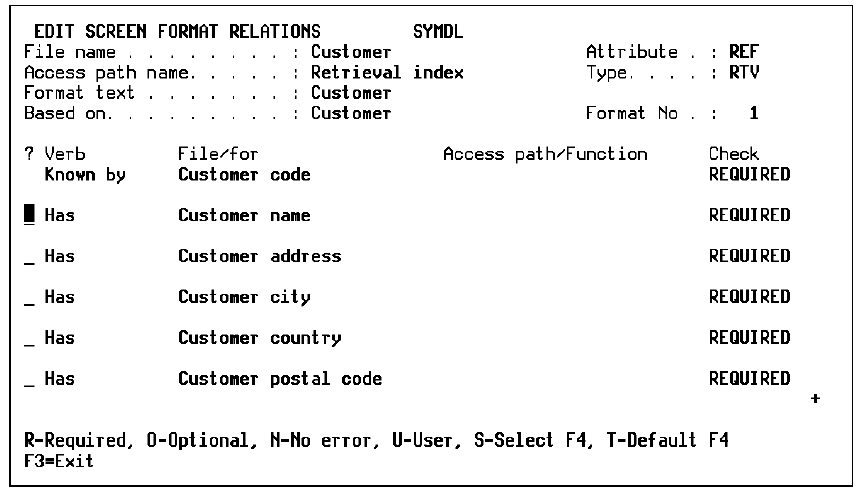
Note: Use the Edit Report Format Relations panel for report designs.
For more information on the format relations options, see the Editing Device Design Formats later in this chapter.
CA 2E optional F4 prompt function assignment enables you to override the function assigned to the access path relationship at the access path and function levels. Using F4 prompt function assignment you can assign any external function other than Print File to the relation. The relation must be a file-to-file relationship.
To Assign the Override at the Function Level:
The Edit Function panel appears.
To Cancel the Override Selection type T next to the selected relation to turn off the selection override. CA 2E now overrides the default function assigned to the access path relationship.
For more information on F4 prompt function assignment, see SELRCD in the chapter "Defining Functions."
To Change the Field’s Format Details
The Edit Screen Format Details panel appears.
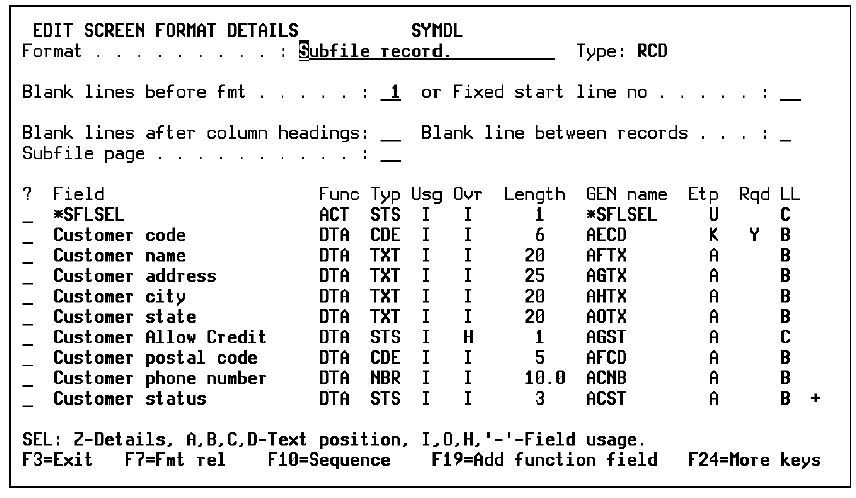
Or,
Place the cursor on the selected field and press Enter.
The Edit Report Entry Details panel or the Edit Screen Entry Details panel appears, depending on the function type.
F10 toggles between the detail format and tabbing sequence panels.
This panel allows you to see the sequence in which fields are displayed and if you are using ENPTUI, to adjust the sequence as you prefer. For further information, see the section on ENPTUI later in this chapter.
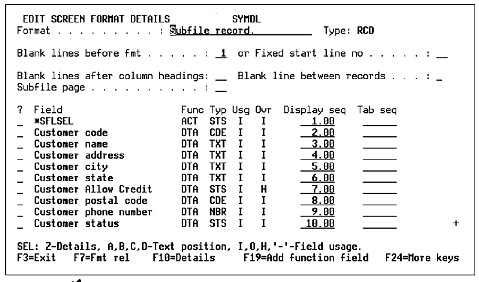 Note: You can modify I/O usage on this panel, which allows you to hide the field.
The panel is refreshed and your selection is reflected in the Ovr (Override) field.
| Copyright © 2011 CA. All rights reserved. | Tell Technical Publications how we can improve this information |