

|
|
|
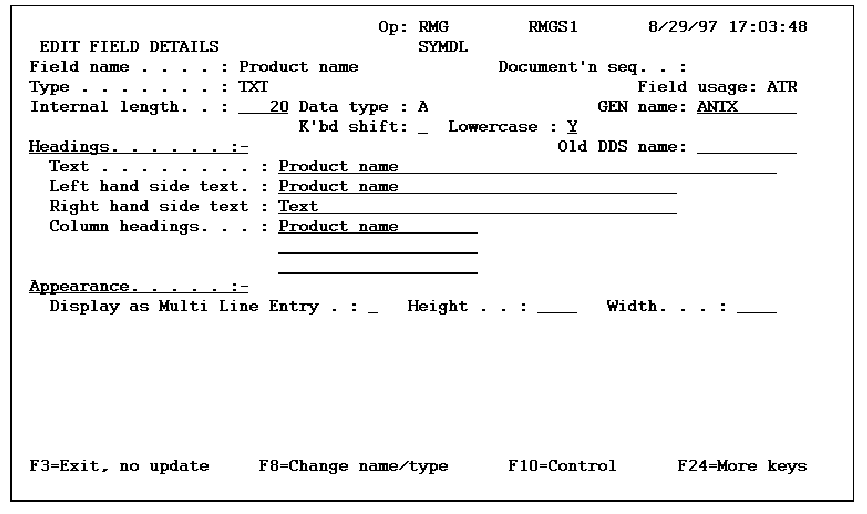
Any alphanumeric field with a length greater than one may be designated as a multi-line entry field (MLE). MLEs are long text fields that are wrapped into a text box. Assignments made at the field level are inherited by all screen entries based on this field. Multi-line entry fields cannot be specified for STS type fields or for any field in the RCD context, that is, it cannot be used on a subfile.
Examples of how to specify that a text field display as an MLE follow.
Display as Multi Line Entry: Height: Width:
The multi-line entry field displays in normal intensity if it uses the default value from the field definition and displays in high intensity if the default has been overridden.
If a field is an MLE, then on the device design editor the field displays with a length equal to the column width assigned to the MLE.
All parts of the MLE display on the device design editor; however, it is the responsibility of the designer to ensure that no fields are overwritten by the additional lines of the MLE. Positioning of other fields is relative to the first line of the multi-line entry field.
For workstations that are not attached to a controller that supports an enhanced data stream, the different parts of the continuation field are treated as separate fields for editing, but when enter is pressed, a single field is returned to the program.
| Copyright © 2011 CA. All rights reserved. | Tell Technical Publications how we can improve this information |