

|
|
|
Type the file and name of the function to be submitted for batch execution and press Enter. If the function you specified is an EXCEXTFUN, EXCUSRPGM, or PRTFIL function, the Submit job option appears. Type Y to indicate that the function is to be submitted for batch execution.
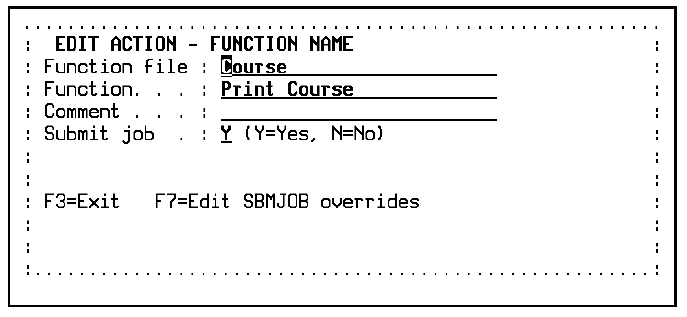
Press Enter to display the Overrides option.
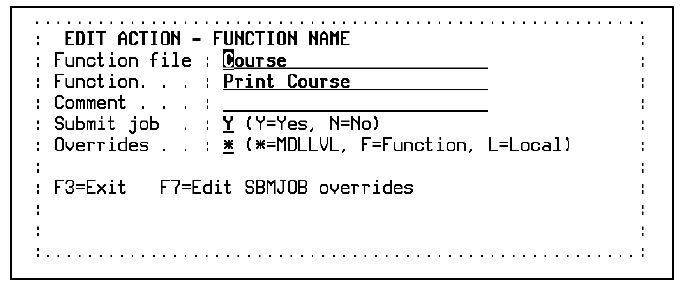
The Overrides option specifies the source of the SBMJOB parameter overrides to use for this call.
|
Value |
Description |
|
* |
Model level |
|
F |
Function level |
|
L |
Action diagram (local) level |
Type the appropriate value.
Note: Performance degrades if you specify many individual parameters on the call. As a result, it is recommended that you use RCD or KEY parameters only, rather than FLD specifications.
Press Enter.
The action diagram displays with the completed action.
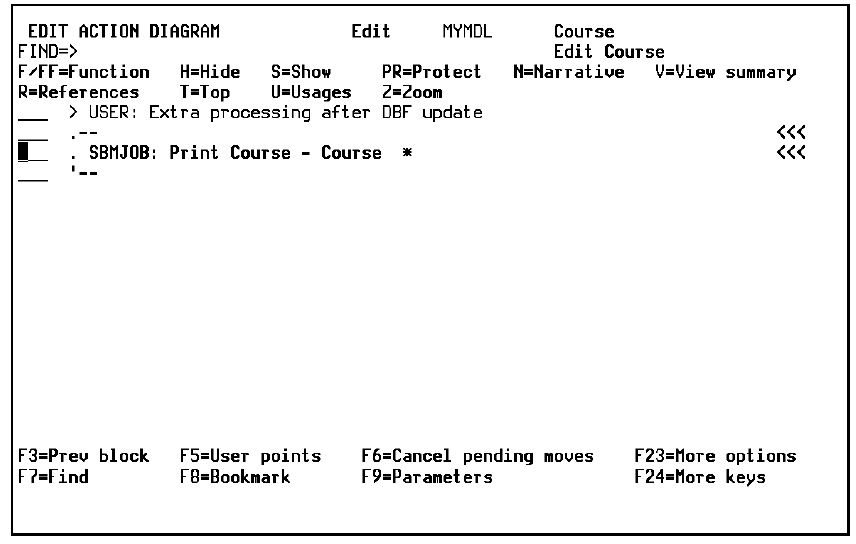
Note: The SBMJOB: prefix indicates that the referenced function will be submitted for batch execution.
| Copyright © 2011 CA. All rights reserved. | Tell Technical Publications how we can improve this information |