

|
|
|
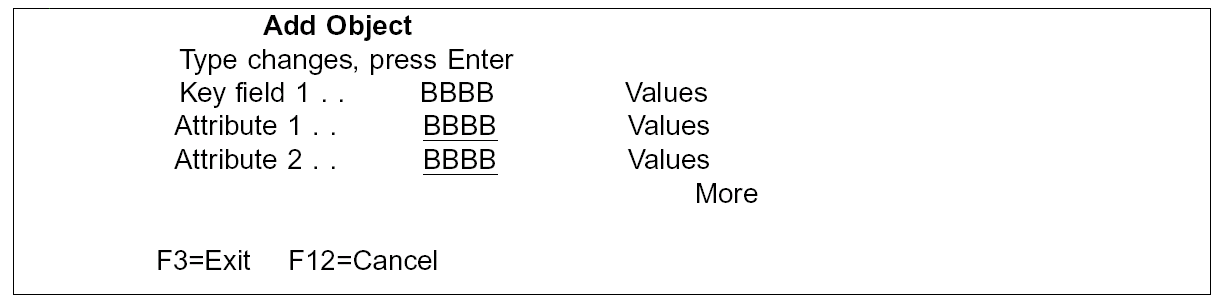
ADDOBJ (Add object). Used to add details for a new object. The details may run over several pages, with the rollup keys being used to scroll between them. The following example illustrates an Add Object panel.
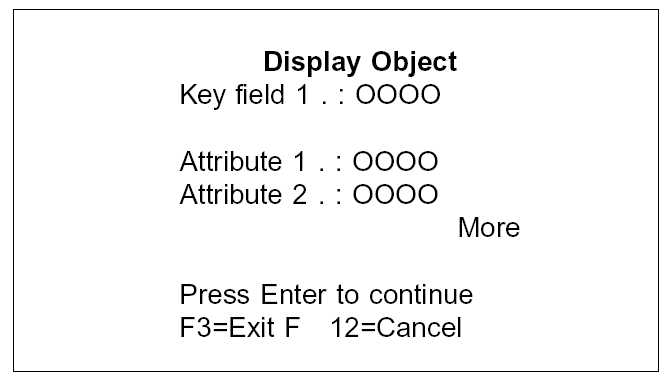
DSPOBJ (Display object). Used to display details for a given item. The details may run over several pages, with the rollup keys being used to scroll between them. The following example illustrates a Display Object panel.
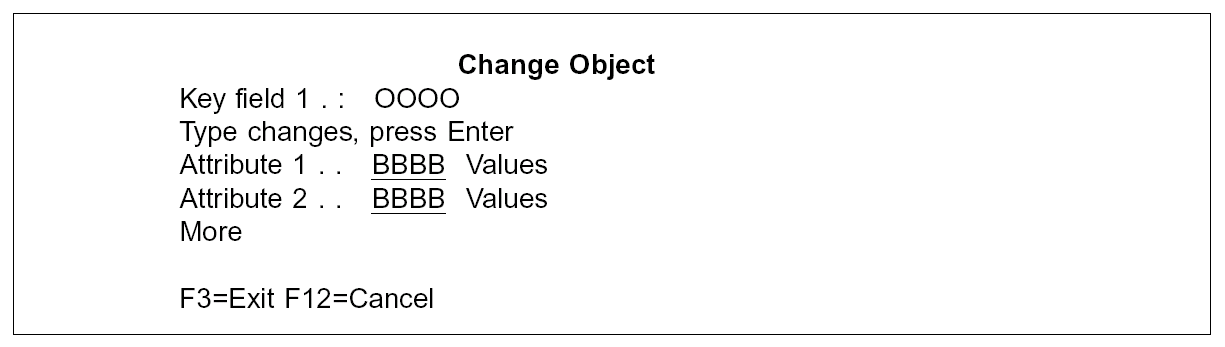
CHGOBJ (Change object). Used to changed details for a given existing item. The details may run over several pages, with the rollup keys being used to scroll between them. The following example illustrates a Change Object panel.
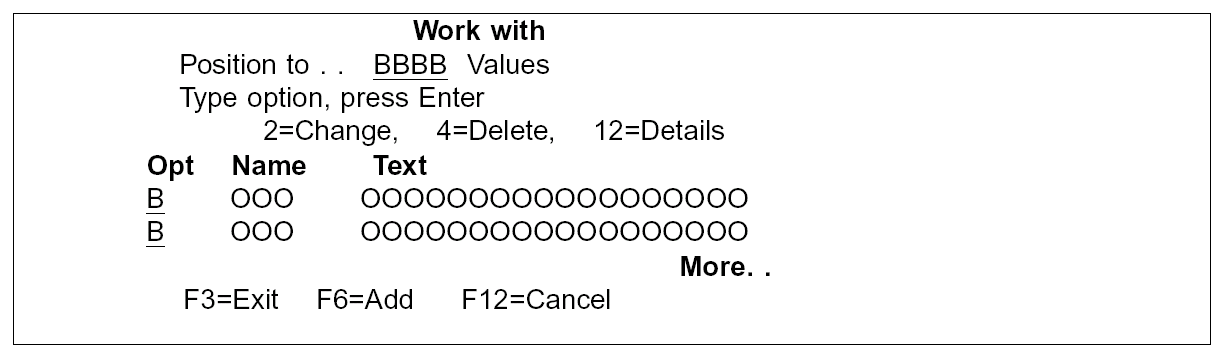
WRKOBJ (Work with). Used to work with items of a given type. Usually Change (Opt=2, shows a CHGOBJ) and Delete (Opt=4) are allowed as options. F6 can be used to add (shows an ADDOBJ for the item type). Rename (Opt=7, Shows the RNMOBJ panel) may also be enabled. The following example illustrates a Work with panel.
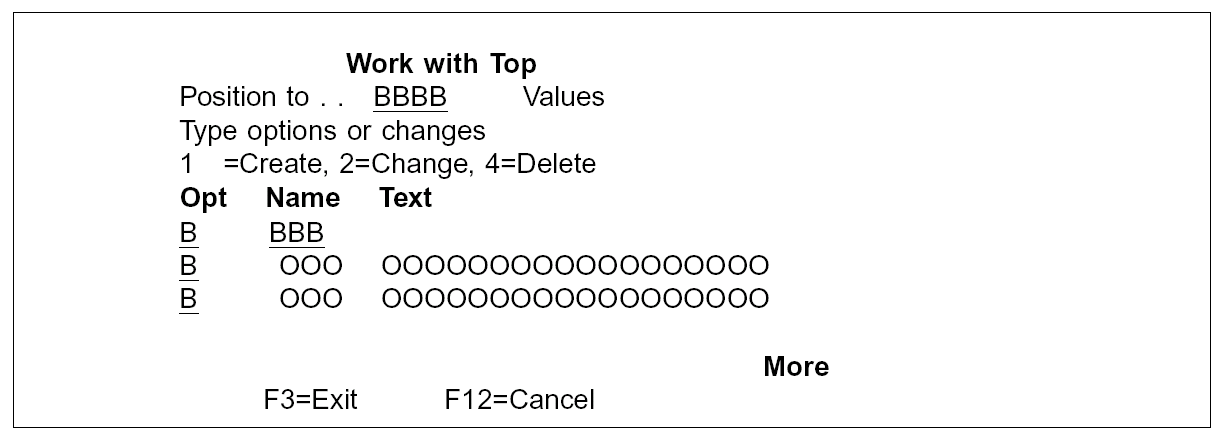
WRKOBJTOP (Work with Object, top entry allowed). Allows you to work with items of a given type. New items may be added using an entry line at the top of the column (using Opt=1). Change (Opt=2, shows a CHGOBJ) and Delete (Opt=4) are allowed as options. Rename (Opt=7) will usually be enabled. The following example illustrates a Work with Top panel.
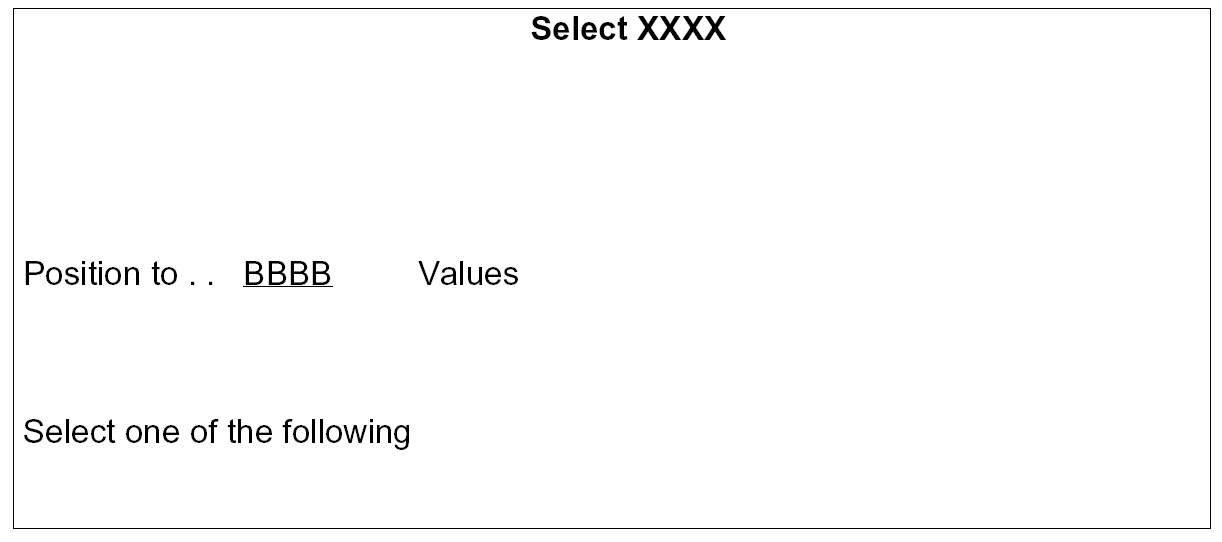
SLTOBJ (Select Object). Provides a selection display, allowing you to select an item from a list of allowed values. Always called from another pane— usually when F4 is pressed. Select (Opt=1) is the only allowed option. The following example illustrates a Select Object panel.
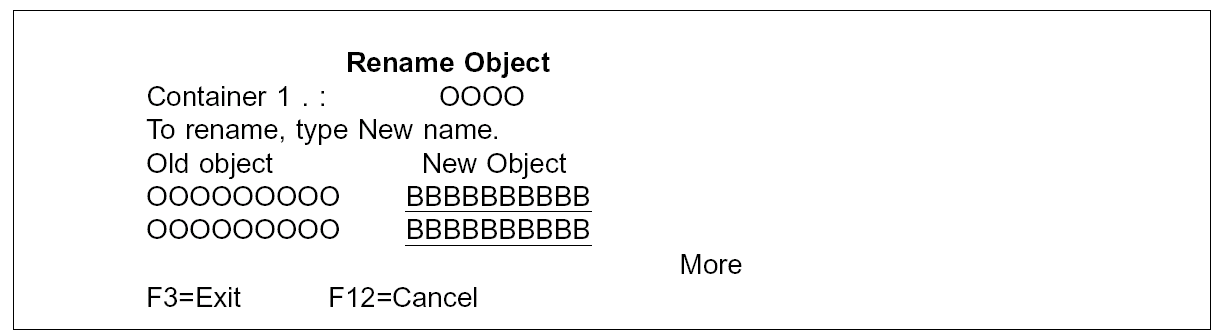
RNMOBJ (Rename object display). Used to rename the identifier of given existing items. Invoked by taking rename (Opt=7) from a Work with display. The following example illustrates a Rename Object display.
| Copyright © 2011 CA. All rights reserved. | Tell Technical Publications how we can improve this information |