

|
|
|
You can automatically add Subfile Fold (SFLFOLD) and Subfile Drop (SFLDROP) functionality to your generated subfile functions. SFLFOLD/SFLDROP lets you define a command key for the function so that it can be used to toggle between folded mode and dropped mode. In folded mode, the subfile displays as it does in the screen designer, with each subfile record taking up more than one display line. In dropped mode, the operating system automatically truncates each subfile record so that only the data fields that appear on the first display line are displayed. This means that twice as many subfile records are displayed.
SFLFOLD/SFLDROP functionality is only applicable to multiline subfiles. That is, subfiles where one subfile record extends over more than one line on the screen. It is available for the following function types:
Follow these steps:
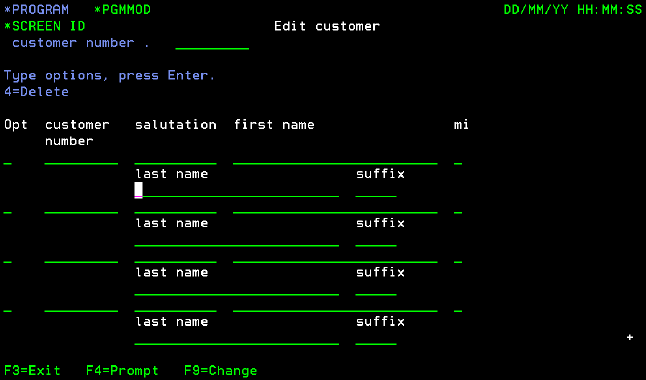
Valid values are 03, 05–11, or 13–24. All other keys are reserved for other use by CA 2E.
Notes:
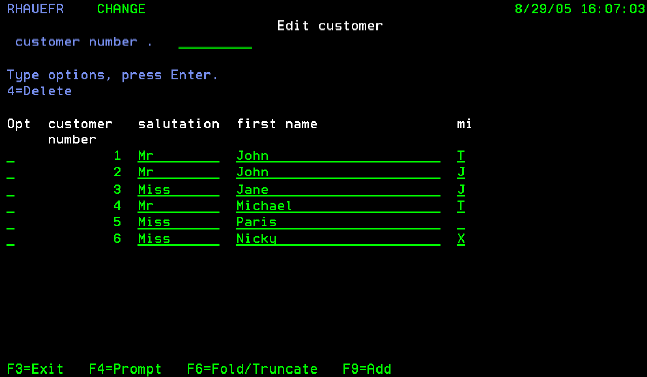
In the following example, 06 has been chosen as the SFLFOLD/SFLDROP command key:
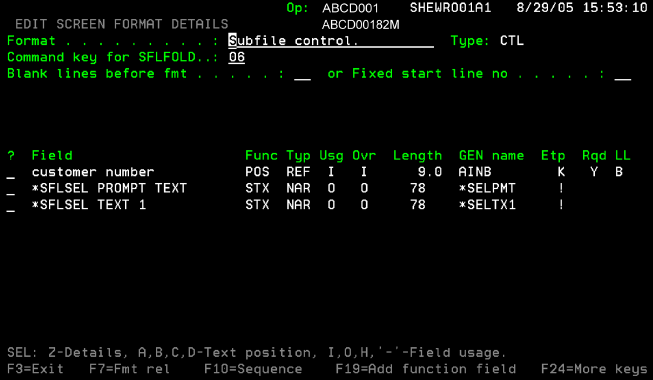
Edit or remove the text: the Fold/Truncate text is retrieved from message identifier Y2F5361 in message file Y2ALCMSG, which can be edited to globally change the default text. Whether this text is displayed or not, the SFLFOLD/SFLDROP functionality is still enabled for the function.
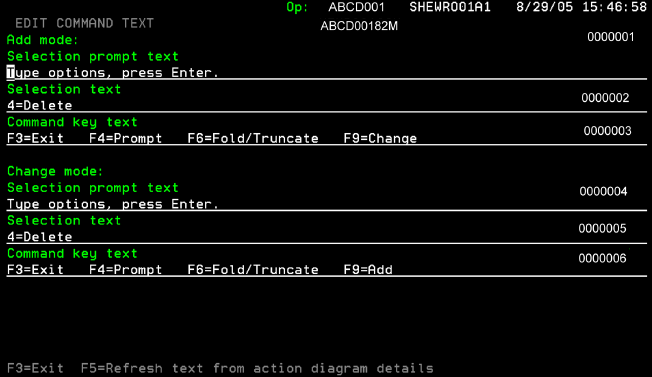
When the function is generated, code is automatically included in the DDS for the display file and in the source for the program to set and check the subfile mode before and after the screen is displayed. The subfile mode is available programmatically through the *Subfile mode field in the PGM context. It has an internal DDS name SFM, and has the following conditions:
*Folded 		VAL 	0 	0
*Truncated 	VAL 	1 	1
In the previous procedure, when the screen is initially displayed, it displays as follows, where only four records are displayed, each showing the full subfile record:
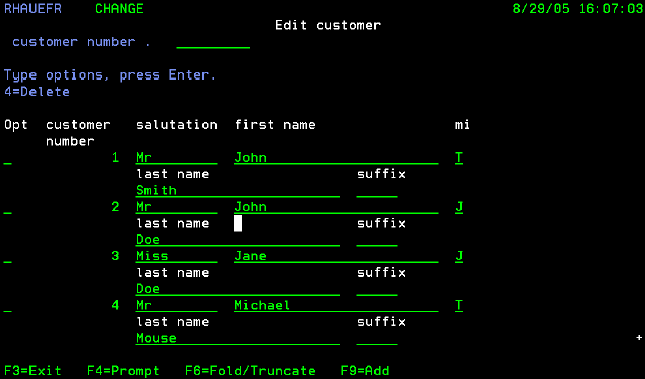
Pressing F6 redisplays the screen, showing only the first line of each subfile record, with up to 12 records partially displayed. The following panel demonstrates this screen:
| Copyright © 2011 CA. All rights reserved. | Tell Technical Publications how we can improve this information |