

|
|
|
Press F11 on the panel that appears to access the Attach Device Functions panel. In this example, we chose format level.
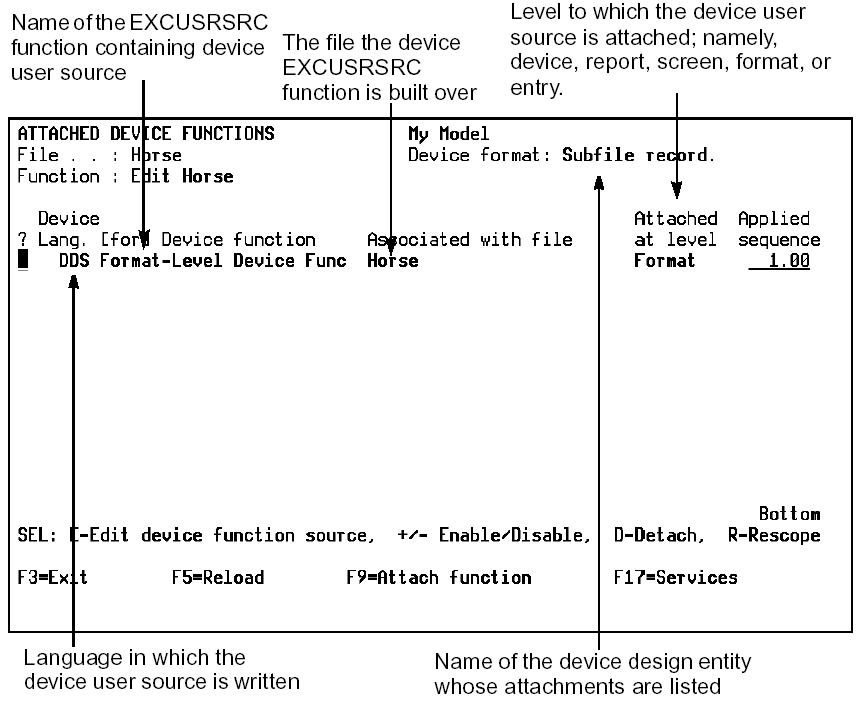
Note: A device user source function was previously attached to this format.
Press F9 to display the Attach Device Function window and attach the device user function just created.
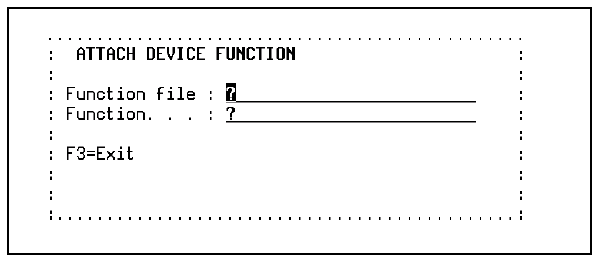
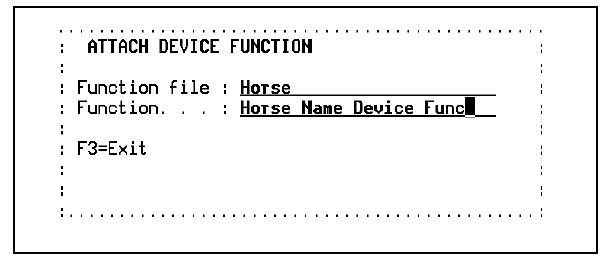
Specify the device user function just created and press Enter.
The Attached Device Functions panel reappears showing both attached device user functions.
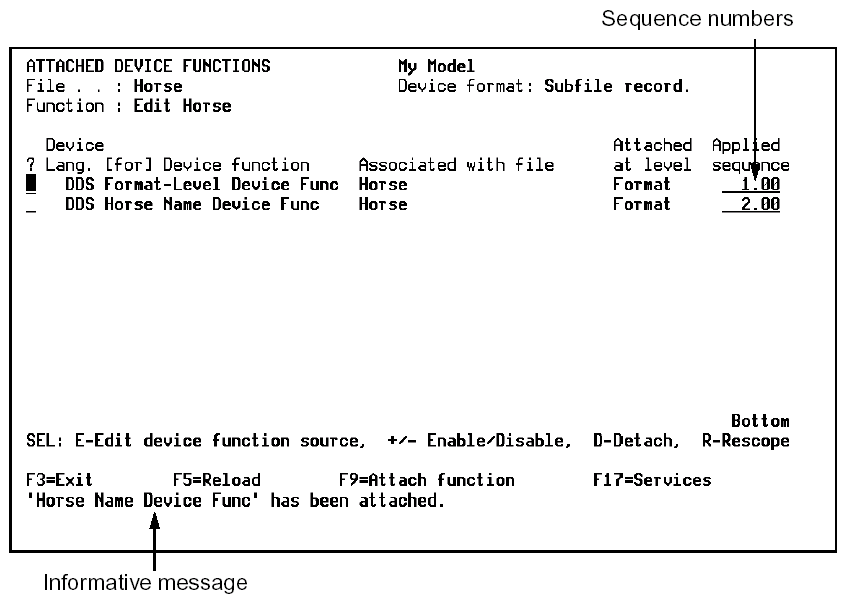
From this panel you can:
The sequence numbers specify the order in which the device user functions are attached to the device design. Sequence numbers are automatically assigned and can be changed. However, they must be unique for a level. The subfile is sorted by sequence number when the display is reloaded.
Sequence numbers:
| Copyright © 2011 CA. All rights reserved. | Tell Technical Publications how we can improve this information |