

|
|
|
A bookmark is a record of a location in the action diagram that you can use later to quickly return to the marked location. You can create any number of bookmarks in an action diagram.
To create a bookmark, place the cursor on the line in the action diagram where you want the bookmark and press F8.
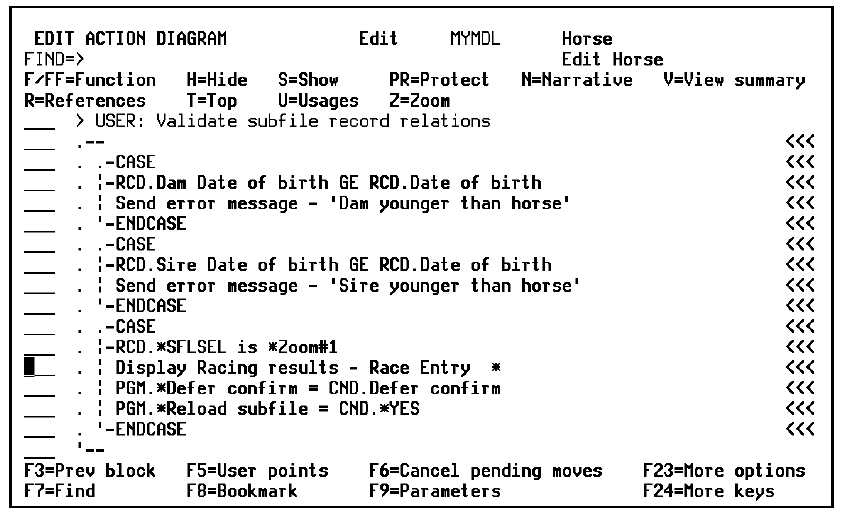
Each bookmark you create is added to a list of bookmarks. Press F20 to display a list of the existing bookmarks for the action diagram.
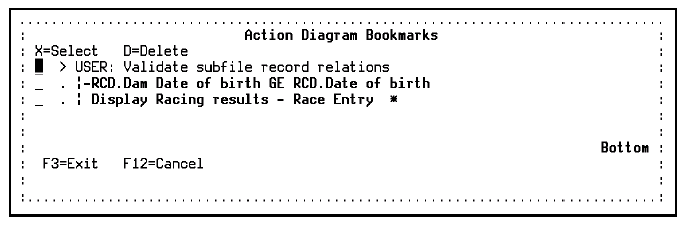 Type X against a bookmark to select it and return to the marked location in the action diagram; type D against a bookmark to delete it. Press Enter.
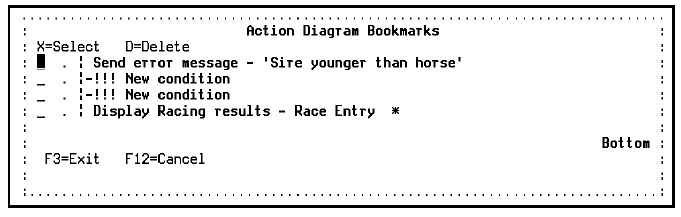
By default, a bookmark is identified on the bookmark list by its text from the action diagram. This can result in similar or identical entries in the bookmark list. For example,
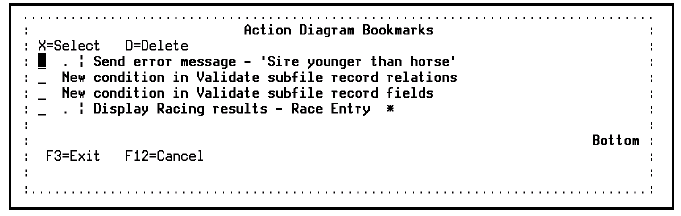
To distinguish such entries, edit the text by typing over the existing bookmark text. For example,
 If you delete the action diagram entry associated with a bookmark, the bookmark is deleted. Otherwise, changes to the action diagram are not reflected in the bookmark list.
You can maintain a separate list of bookmarks for each open function.
You can choose to save bookmarks when you exit a function. To do this, ensure that the option on the EXIT FUNCTION DEFINITION panel called Save bookmarks is set to ‘Y AND the Change/Create Function flag is set to Y. If you don’t set these flags to Y on exit, then the Bookmark list disappears when you exit the function
| Copyright © 2011 CA. All rights reserved. | Tell Technical Publications how we can improve this information |